WI# 104 SURE POS 500
4852-E66-A / 4852-E66
4852-E66-A – NO CUSTOMER DISPLAY
|
4852-E66-A
|
4852-E66-A
|
|
4852-E66-A
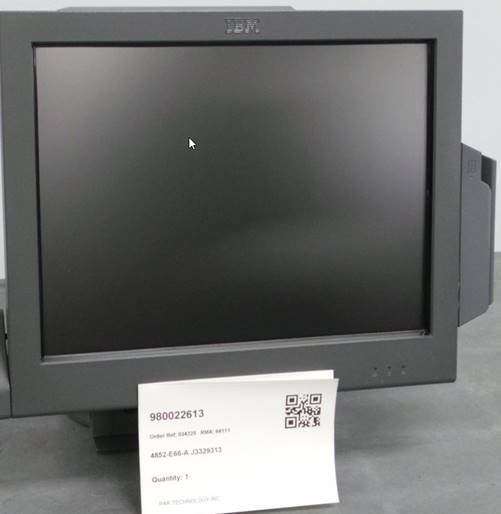
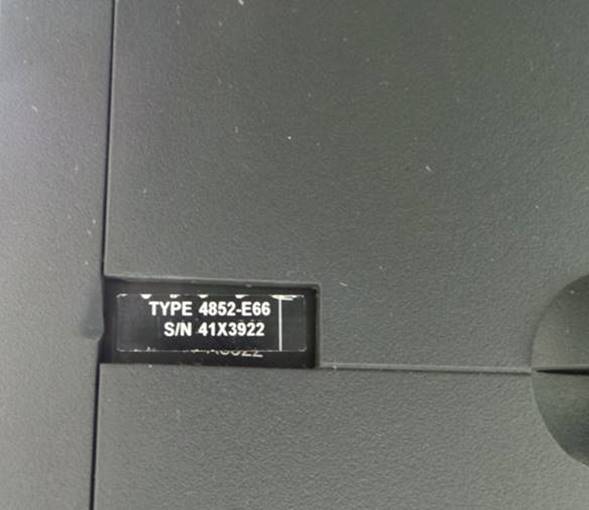
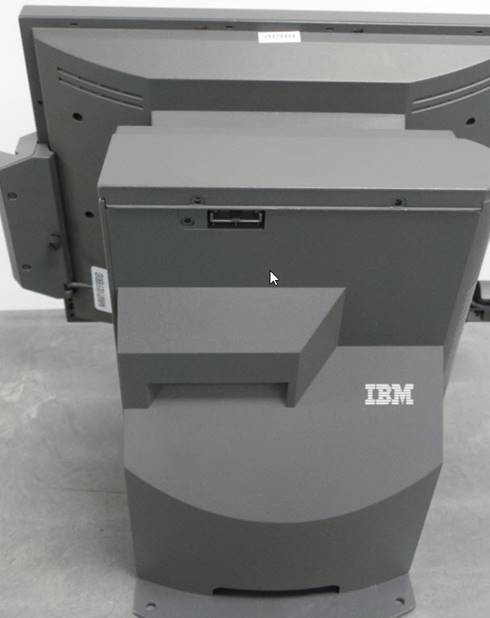
4852-E66 - CON CUSTOMER DISPLAY
|
|
|
4852-E66
|
4852-E66
|
|
4852-E66
|
|
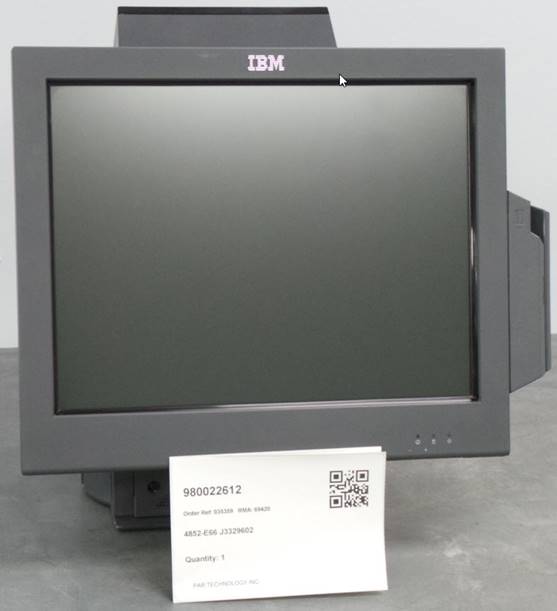
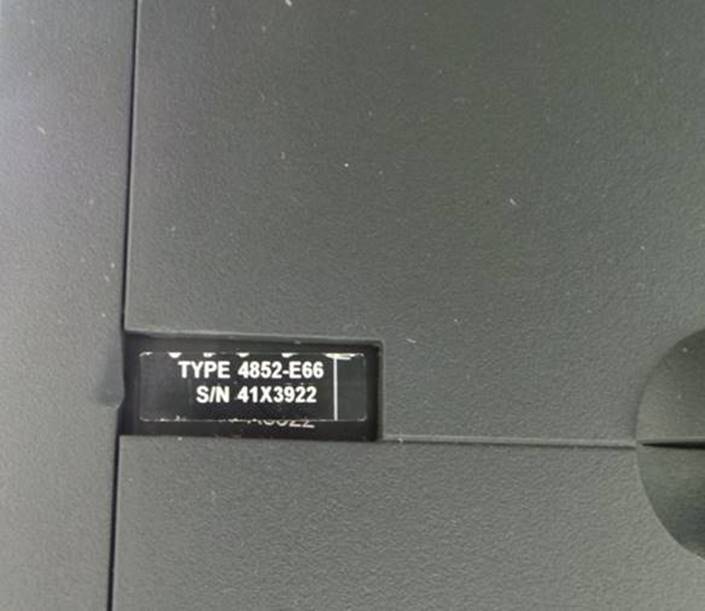
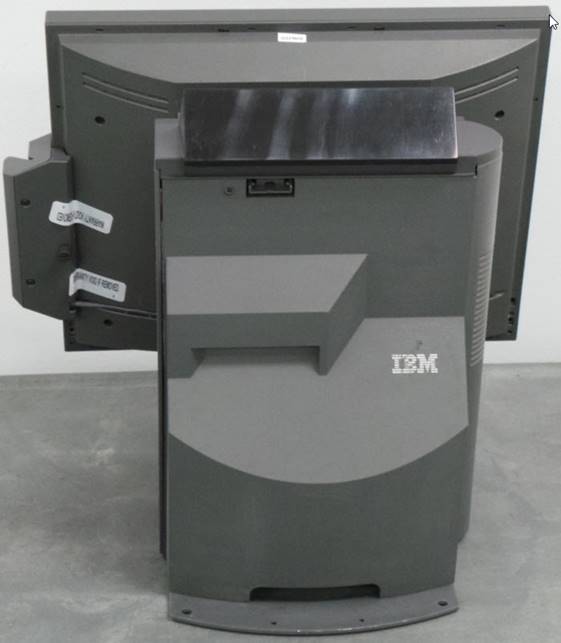
**NOTA 1
**NOTE 1
**TODAS LAS UNIDADES DEBEN SER ENVIADAS AL CLIENTE CON LECTOR DE TARJETA (MSR) INSTALADO. EN CASO DE QUE LA UNIDAD NO TENGA LECTOR DE MSR INSTALADO, INSTALE UN LECTOR DE TARJETA NUEVO**
** ALL UNITS MUST BE SHIPPED TO CUSTOMER WITH CARD READER (MSR) INSTALLED. IF THE UNIT DOES NOT HAVE AN MSR READER INSTALLED, INSTALL A NEW CARD READER **
**NOTA 2
**NOTE 2
**UNICAMENTE SI LA UNIDAD LLEGA CON FINGERPRINT READER SE DEBE REGRESAR AL CLIENTE CON FINGERPRINT READER, EN CASO DE QUE LLEGUE SIN FINGERPRINT READER SE REGRESA IGUAL AL CLIENTE**
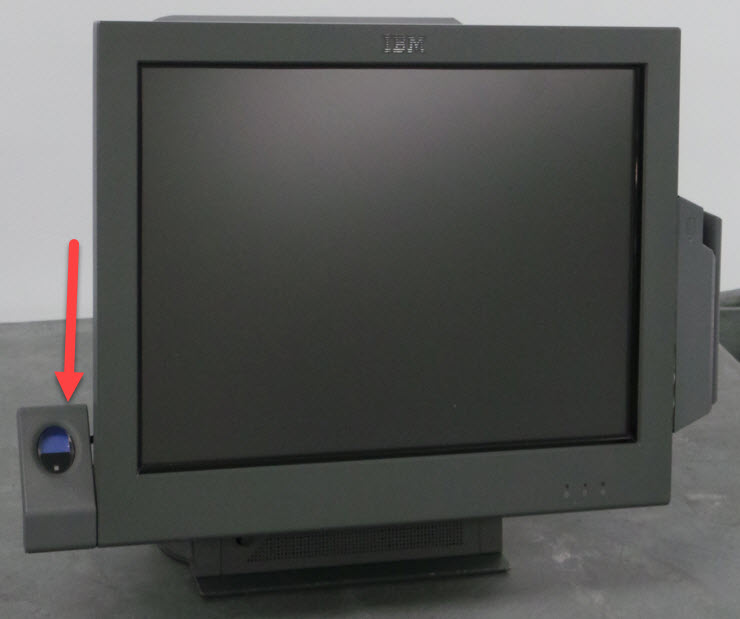
INSPECCION INICIAL Y PRUEBAS / INITIAL INSPECTION AND TESTING
Realice una inspección visual en busca de partes dañadas o quebradas.
Perform a visual inspection for damaged or broken parts.
Retire el tornillo de la cubierta trasera.
Remove the screw from the back cover.
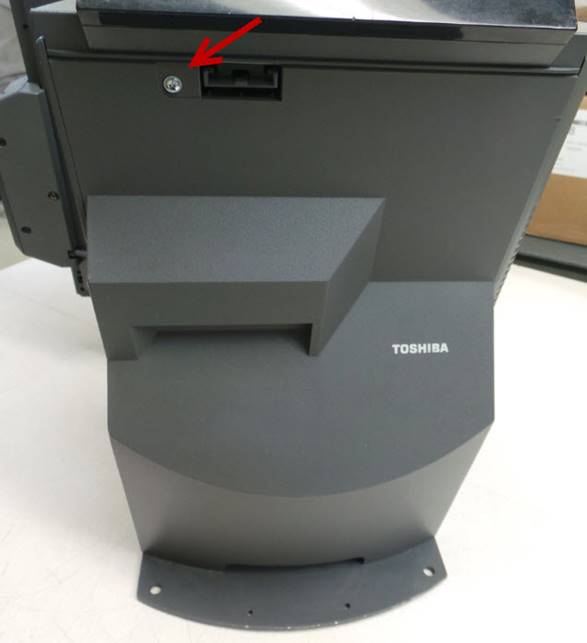
Para desinstalar la cubierta trasera, presione hacia abajo como se muestra en la imagen:
To uninstall the back cover, press down as shown in the image:
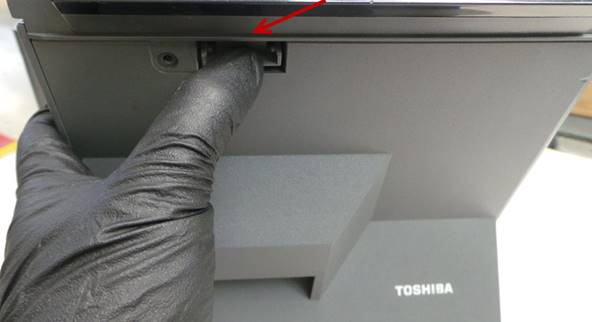
Presione hacia abajo para abrir la cubierta de metal y tener acceso al disco duro y a la tarjeta madre.
Press down to open the metal cover to access the hard drive and motherboard.
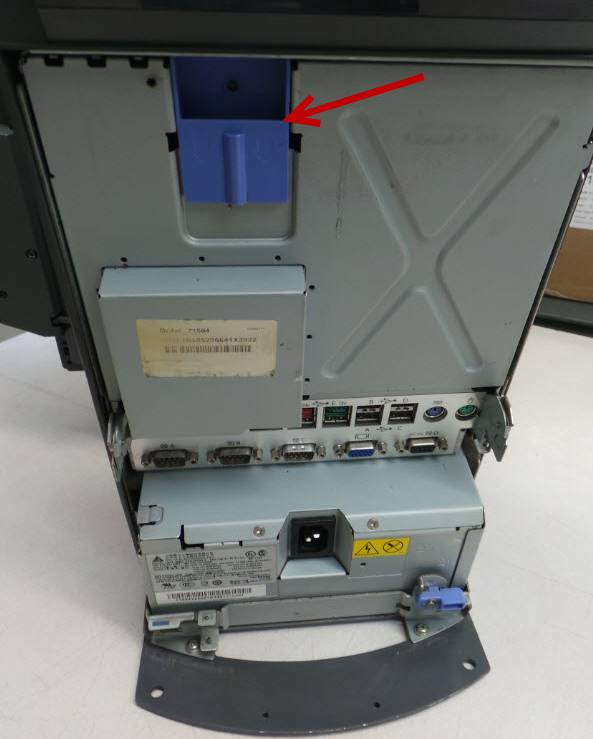
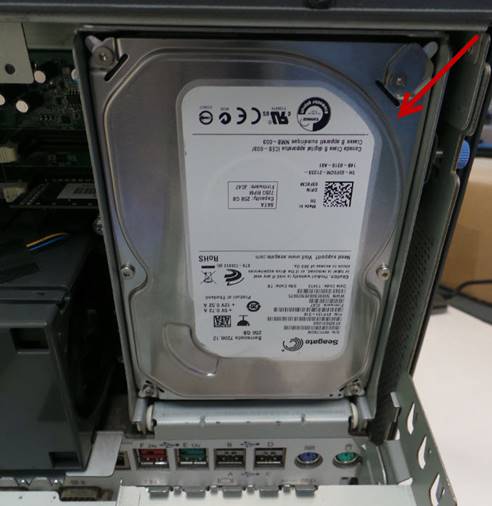
Retire el tornillo del disco duro.
Remove the screw from the hard drive.
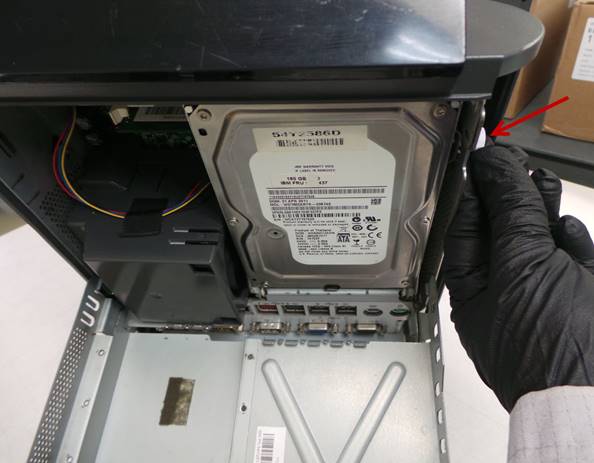
Desinstale el disco duro.
Uninstall the hard drive.
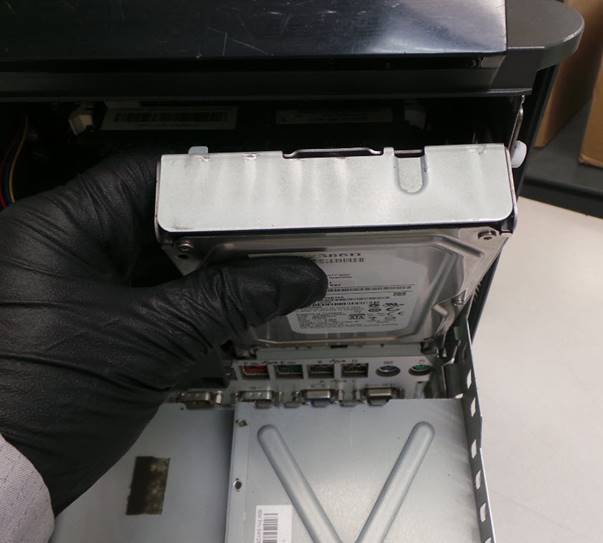
Desconecte el cable de datos y el cable de voltaje.
Disconnect the data cable and the voltage cable.
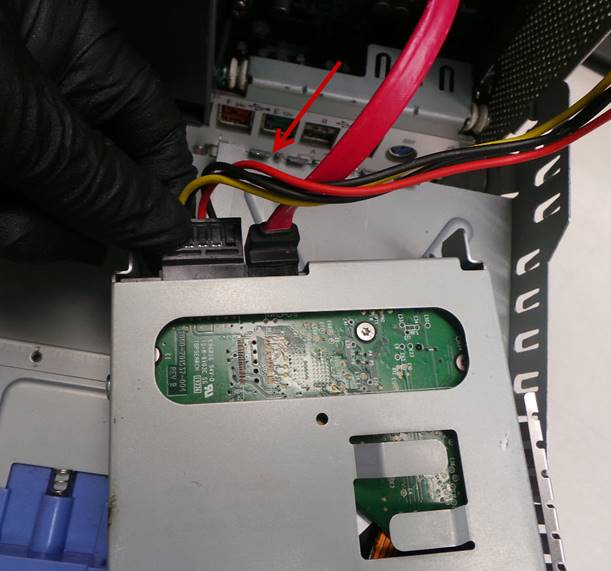
Instale el disco de prueba.
Install the test disk.
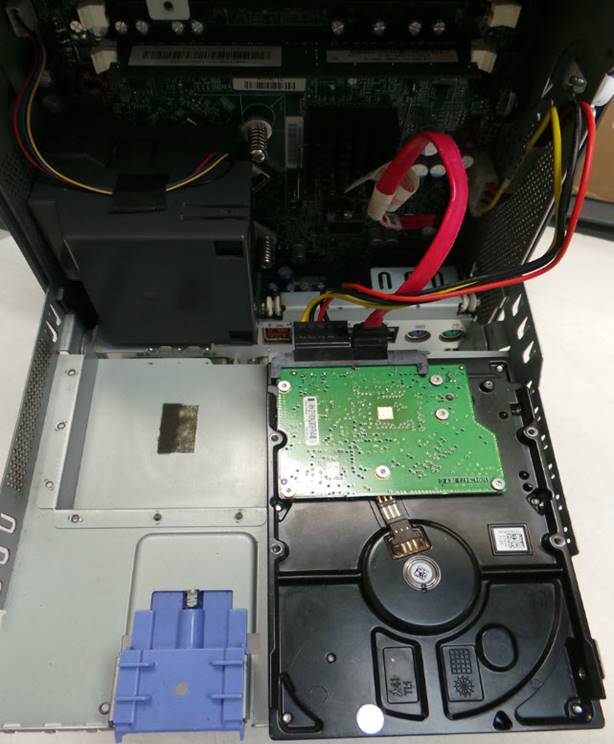
Instale el teclado y ratón.
Install the keyboard and mouse.
Conecte el cable de alimentación de corriente.
Plug in the power cord.
Encienda la unidad.
Turn on the unit.
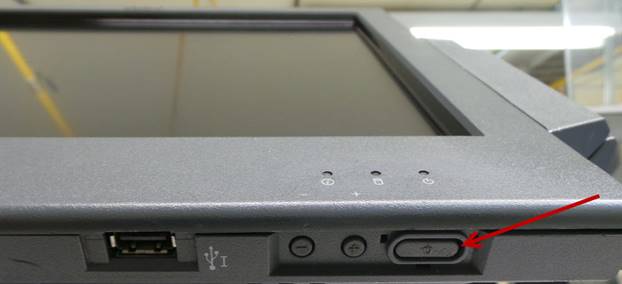
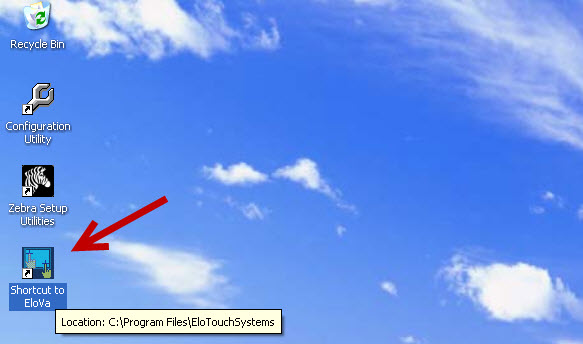
Busque en el escritorio el icono Shortcut to EloVa y ejecútelo.
Find the Shortcut to EloVa icon on your desktop and launch it.
Siga las instrucciones para calibrar la pantalla táctil.
Follow the instructions to calibrate the touch screen.
|
|
|
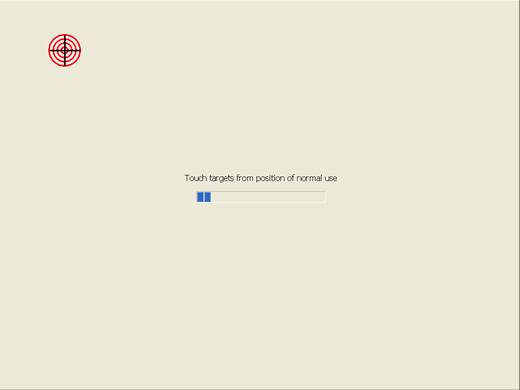
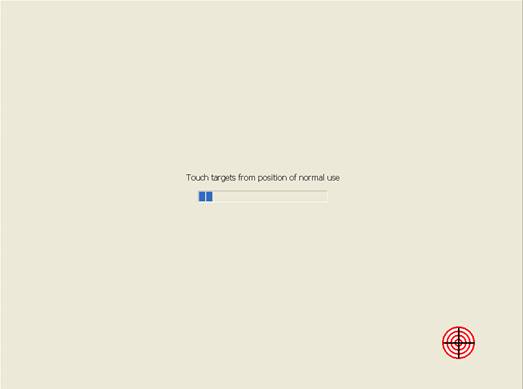
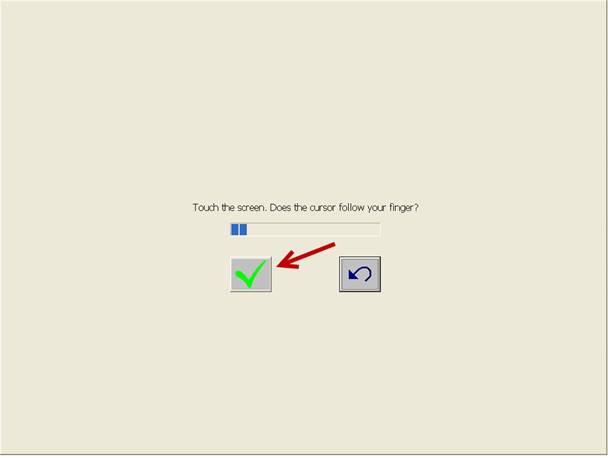
Verifique que el cursor siga su dedo en la pantalla táctil y luego seleccione OK.
Verify that the cursor follows your finger on the touch screen, and then select OK.
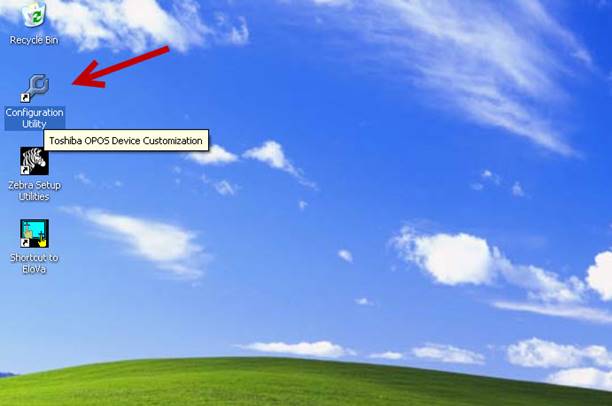
Ejecute el icono Configuration Utility.
Run the Configuration Utility icon.
Seleccione – Select SurePOS 300/500/600, Kiosk, RS-232 Display.
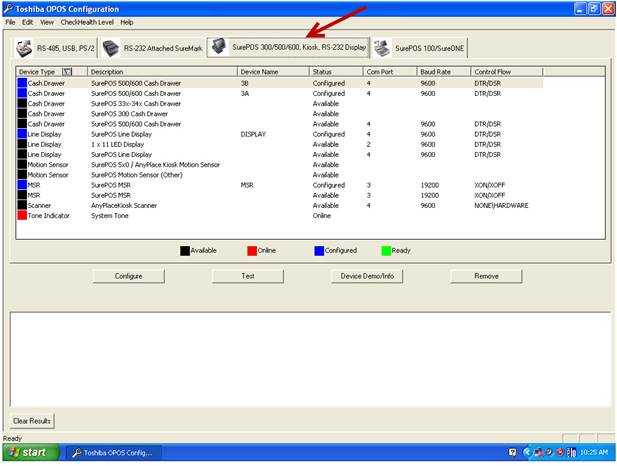
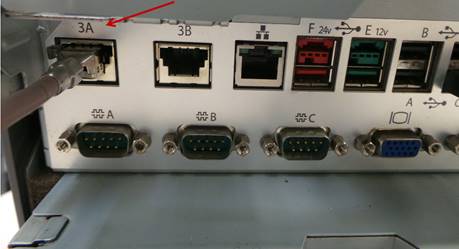
Instale el simulador de la caja de efectivo en el puerto 3A.
Install the cash box simulator on port 3A.
|
|
|
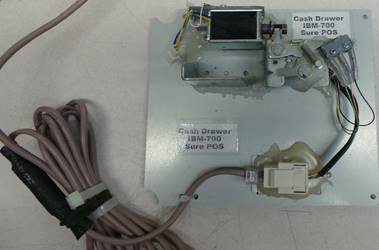
Seleccione – Select CashDrawer SurePOS 3A
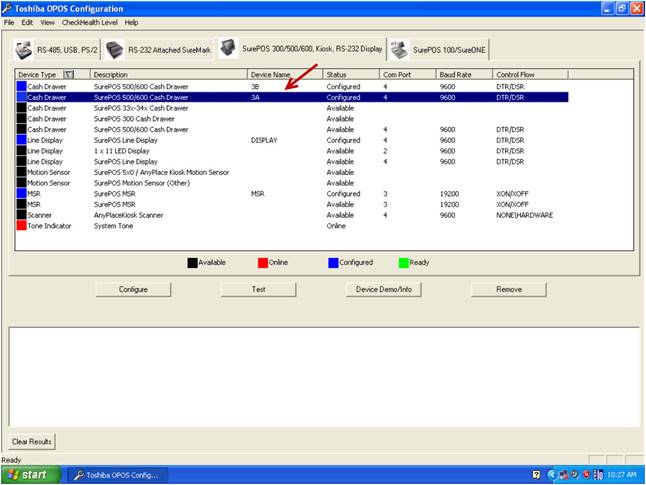
Seleccione – Select Device Demo/Info
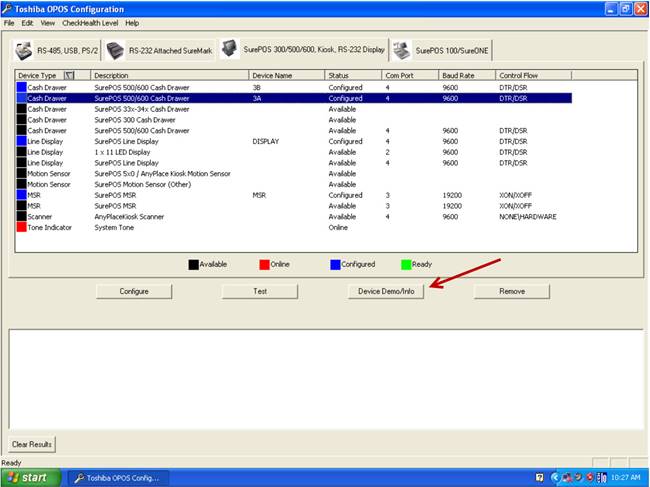
Seleccione – Select Open Drawer
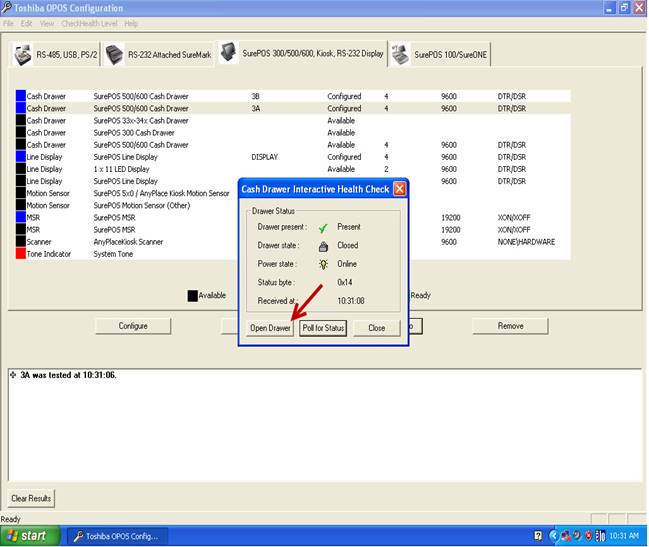
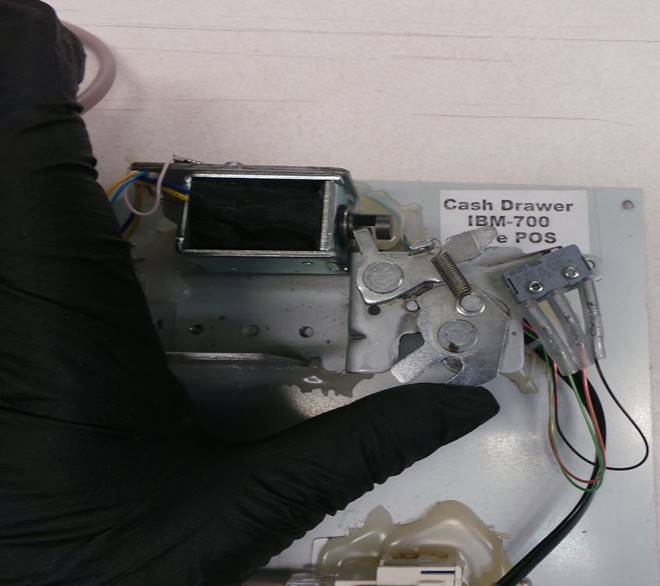
El simulador de la caja se deberá abrir.
The box simulator should open.
Cierre el simulador de la caja manualmente y repita la prueba varias veces.
Close the simulator from the box manually and repeat the test several times.
Seleccione – Select Close
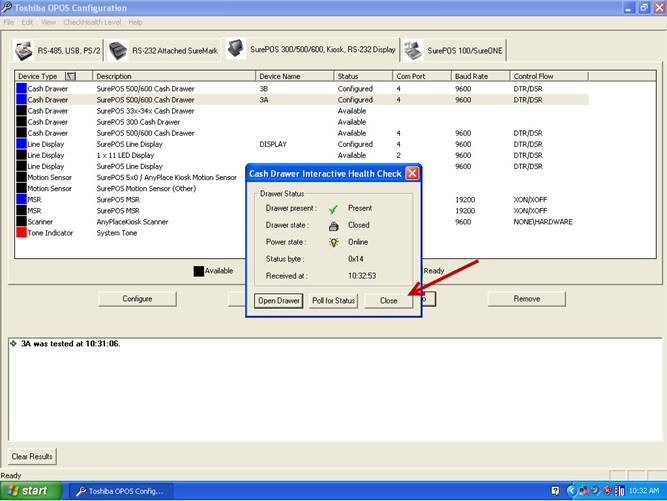
Cambie el simulador de la caja al puerto 3B.
Change the simulator box to port 3B.
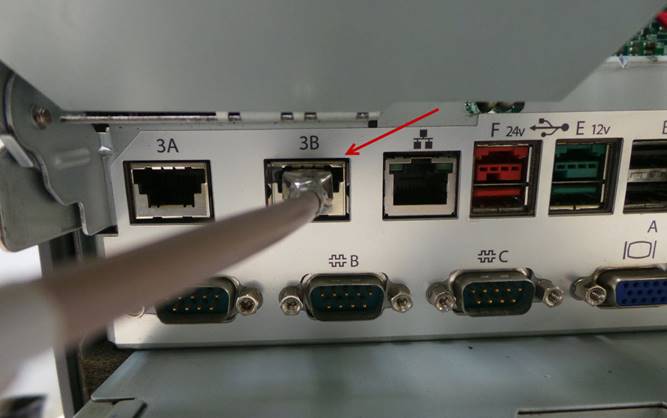
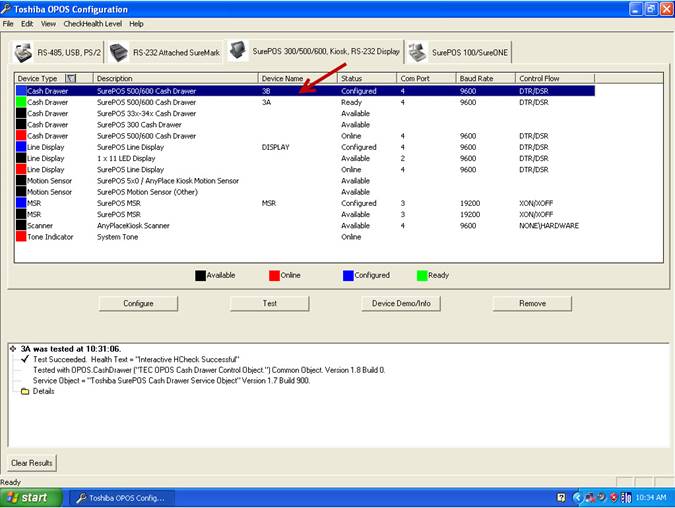
Seleccione – Select CashDrawer SurePOS 3B
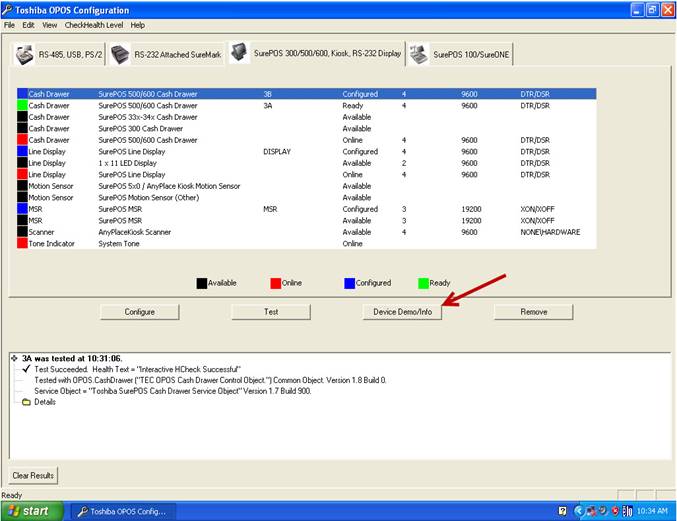
Seleccione – Select Device Demo/Info
Seleccione – Select Open Drawer
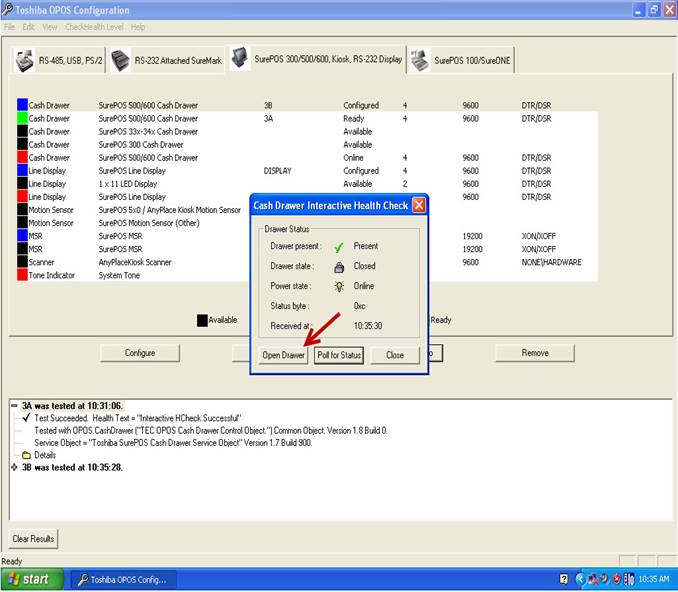
El simulador de la caja se deberá abrir.
The box simulator should open.
Cierre el simulador de la caja manualmente y repita la prueba varias veces.
Close the simulator box manually and repeat the test several times.
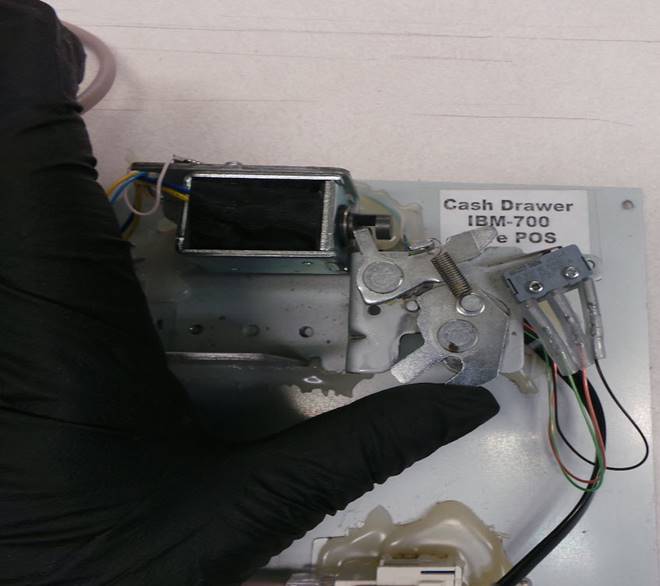
Seleccione – Select Close
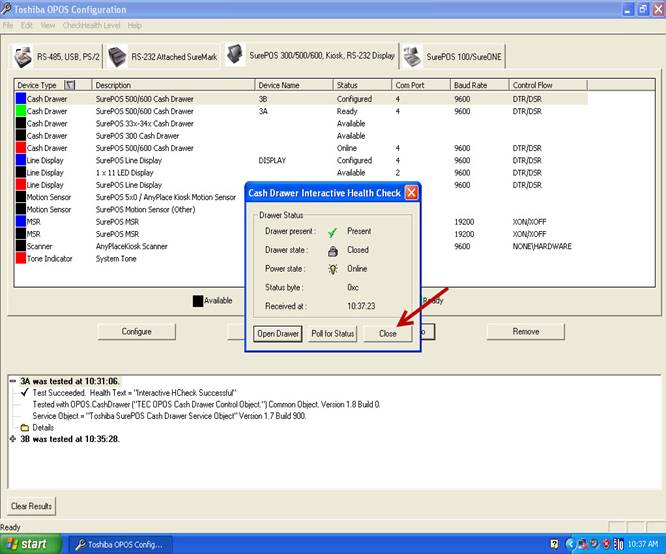
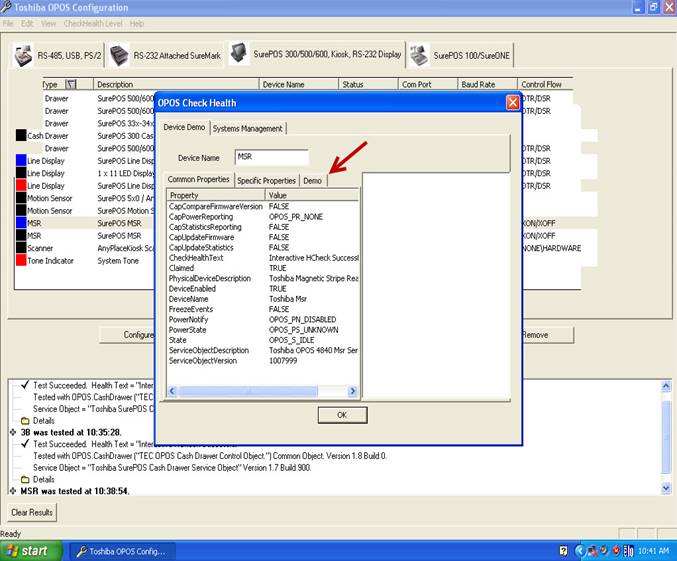
Seleccione – Select MSR
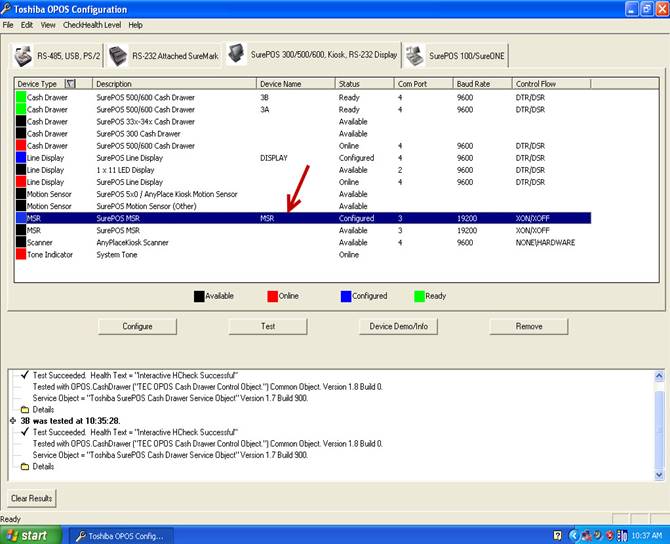
Seleccione – Select Device Demo/Info
Seleccione – Select Demo
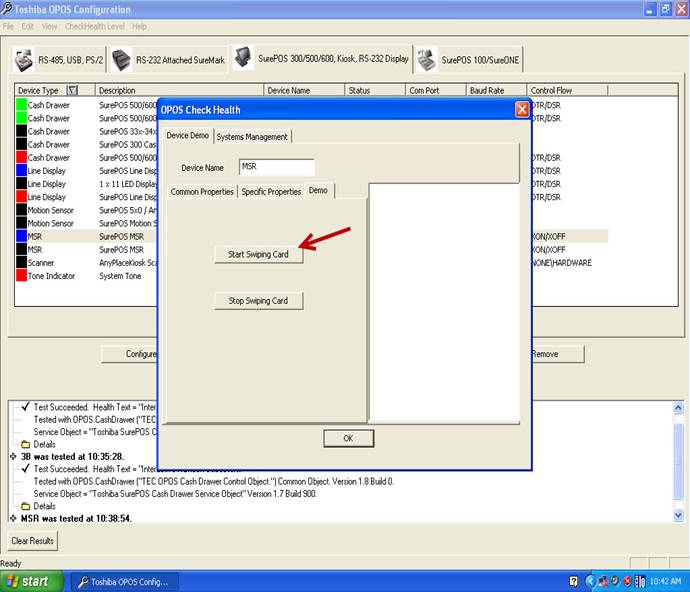
Seleccione – Select Start Swiping Card
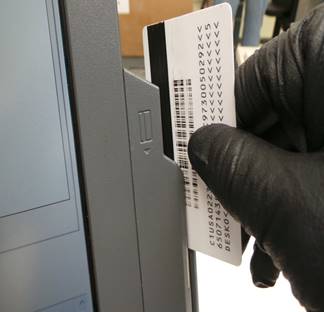
Deslice la tarjeta y el resultado de la lectura será desplegado en la pantalla.
Slide the card and the reading result will be displayed on the screen.
|
|
|
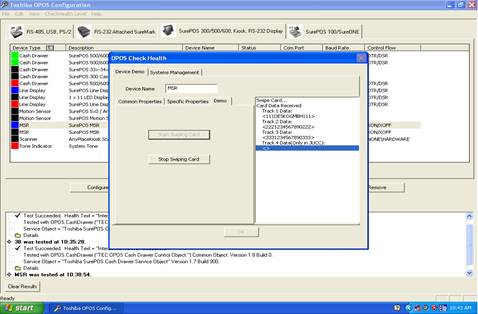
Repita la prueba varias veces, luego seleccione Stop Swiping Card.
Repeat the test several times, then select Stop Swiping Card.
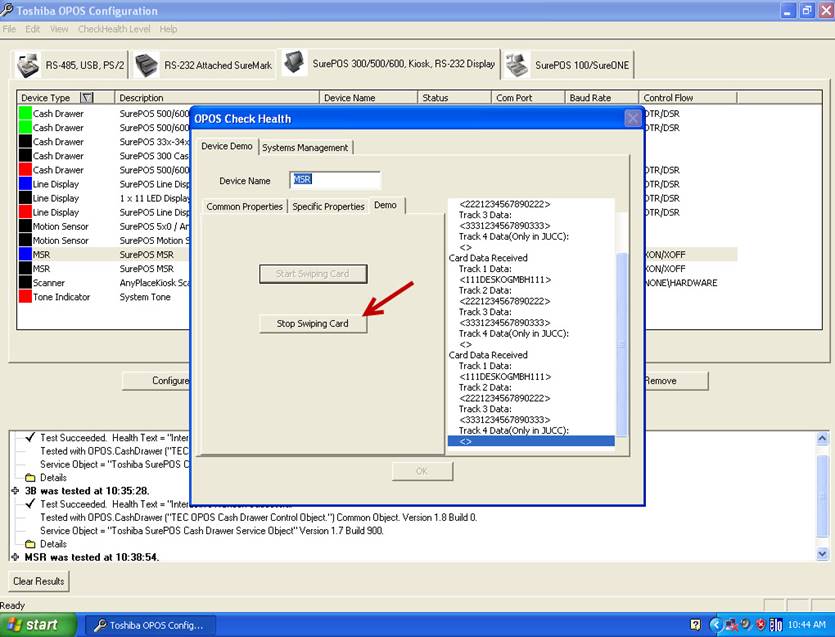
Seleccione – Select OK
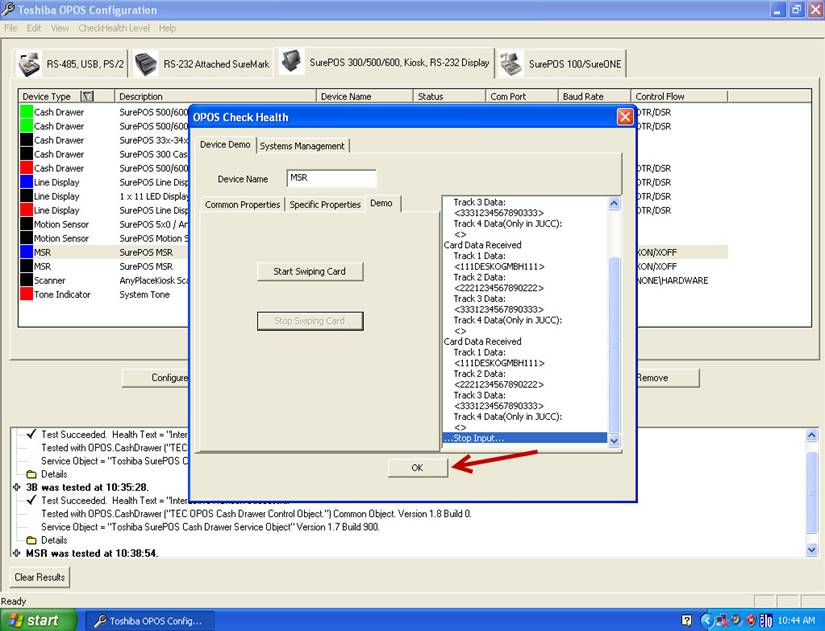
Si la unidad tiene display trasero, seleccione Display.
If the unit has a rear display, select Display.
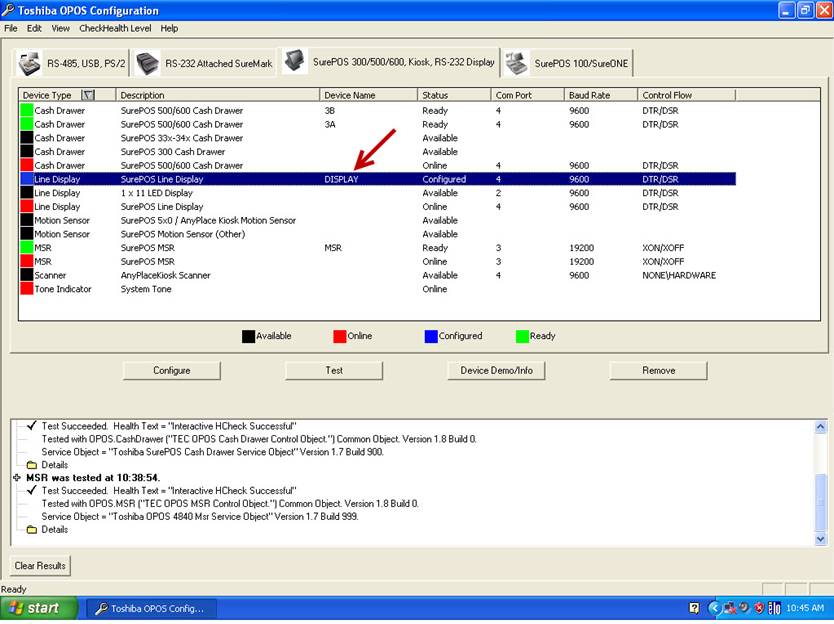
Seleccione – Select Device Demo/ Info
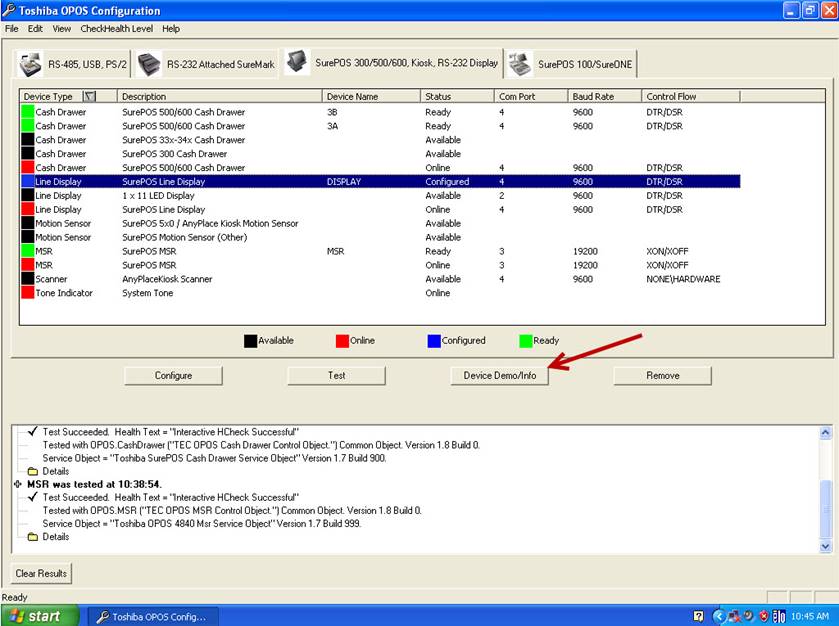
Seleccione – Select Demo
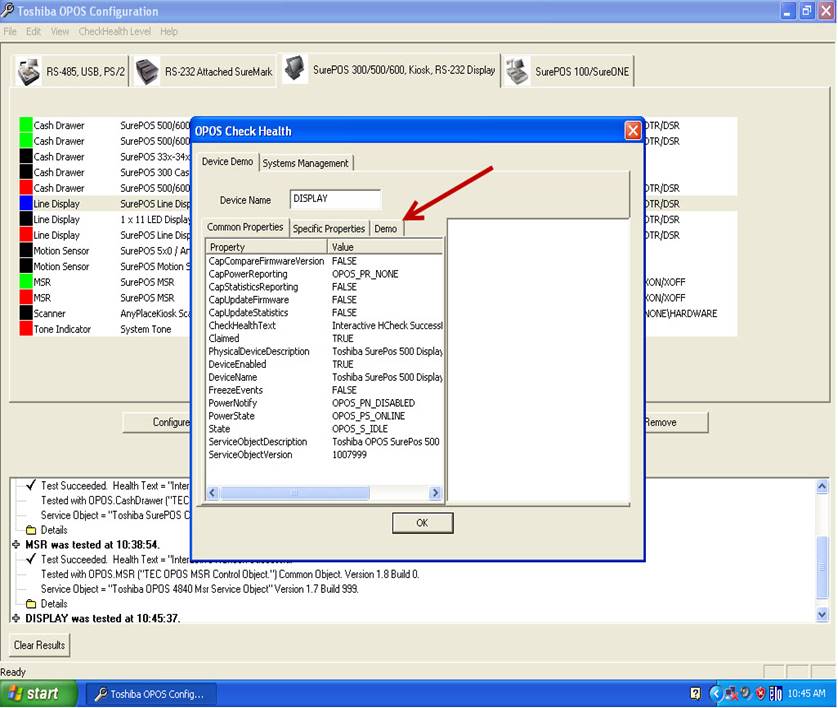
Seleccione – Select Display Text
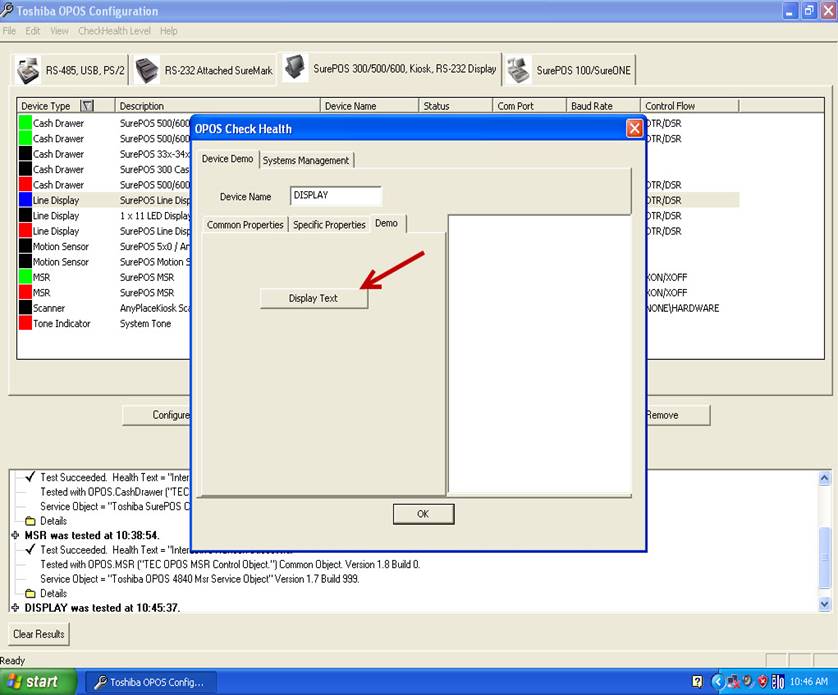
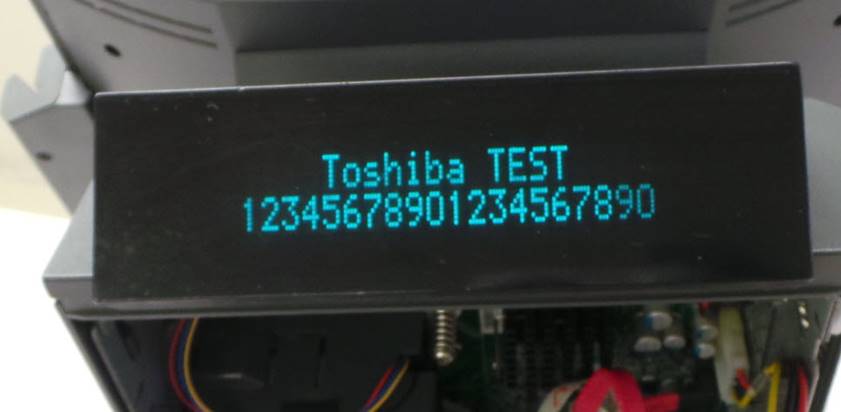
El Display desplegara una serie de caracteres, revise que la intensidad de la luz sea la misma en todos los caracteres.
The Display will display a series of characters, check that the light intensity is the same in all the characters.
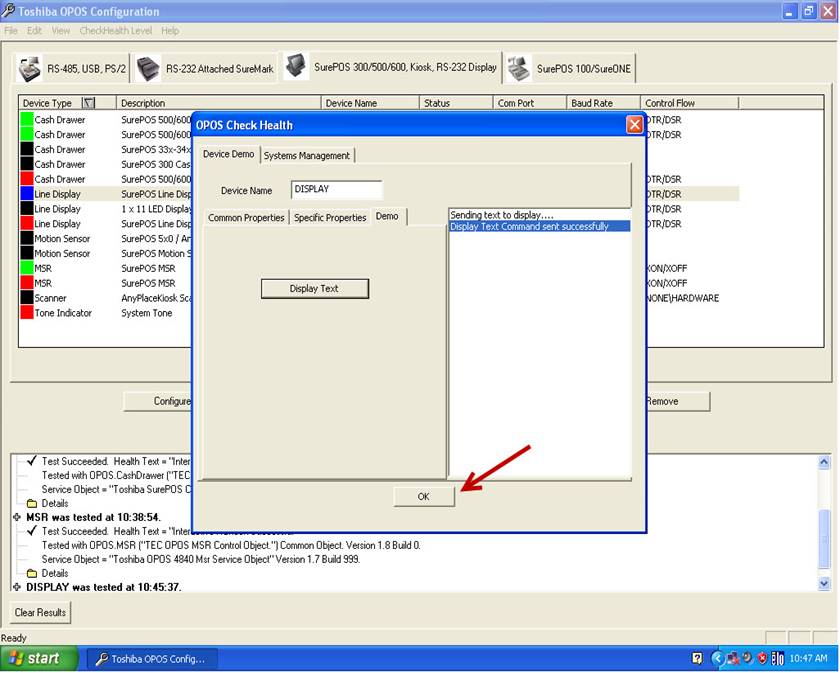
Seleccione – Select OK
Seleccione – Select Test
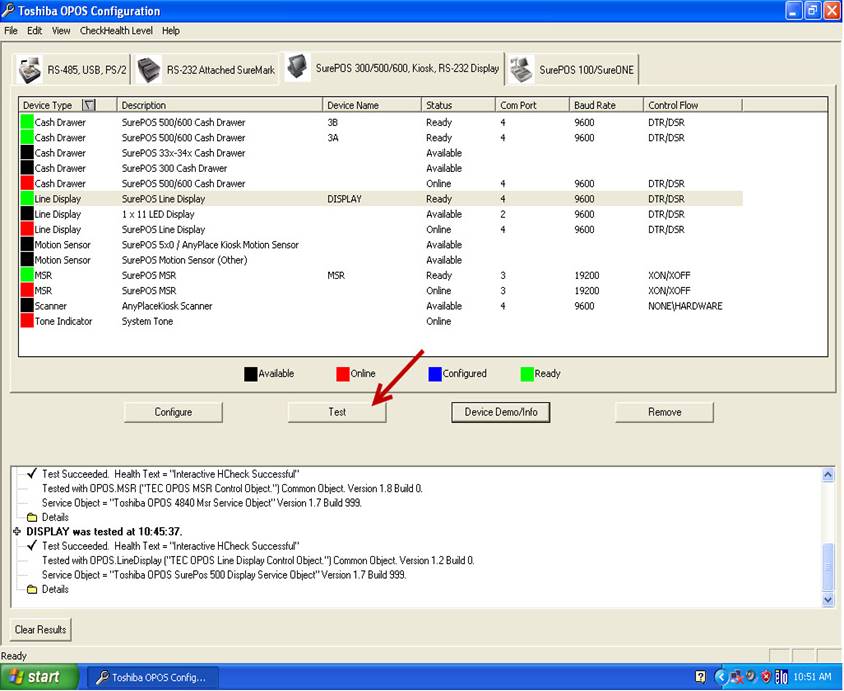
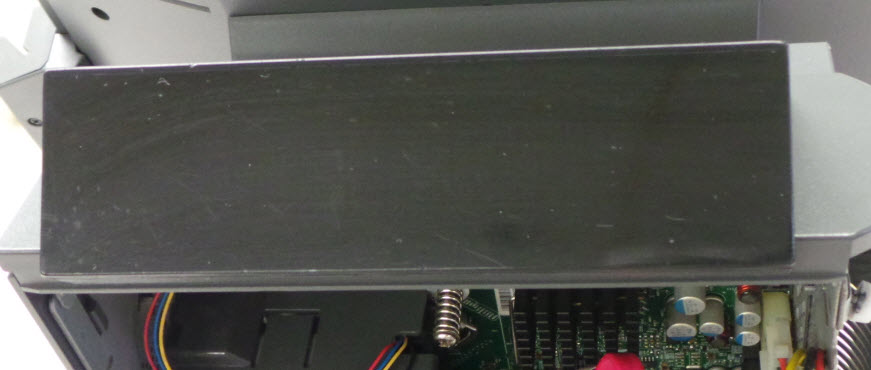
El Display se apagará.
The display will turn off.
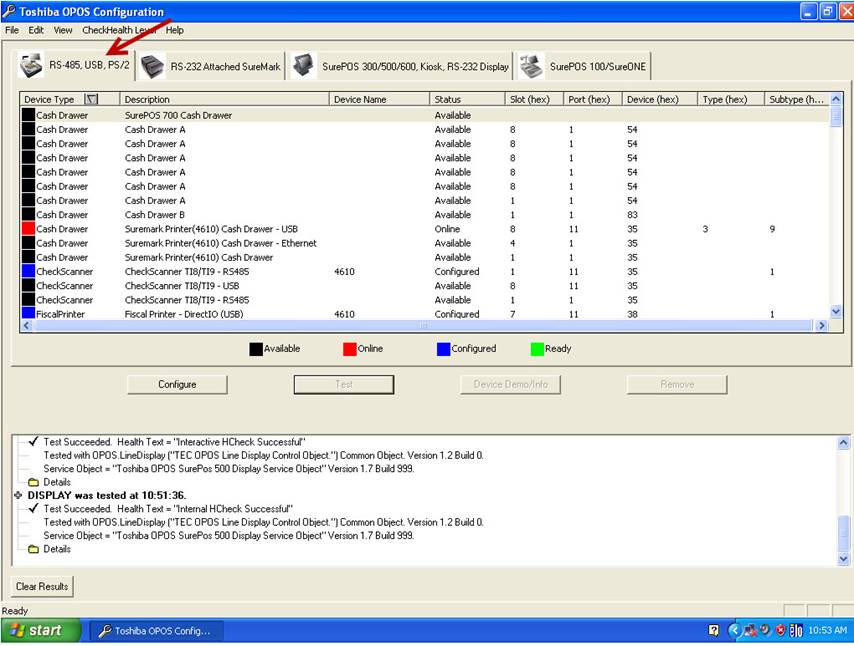
Seleccione – Select RS-485, USB, PS/2
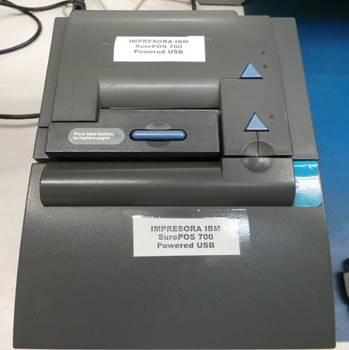
Instale la impresora IBM SurePOS 700 en el puerto F de la unidad.
Install the IBM SurePOS 700 printer in port F on the unit.
|
|
|
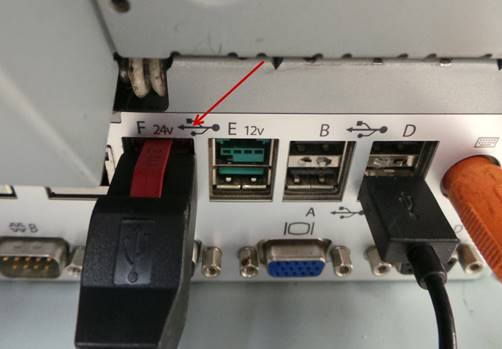
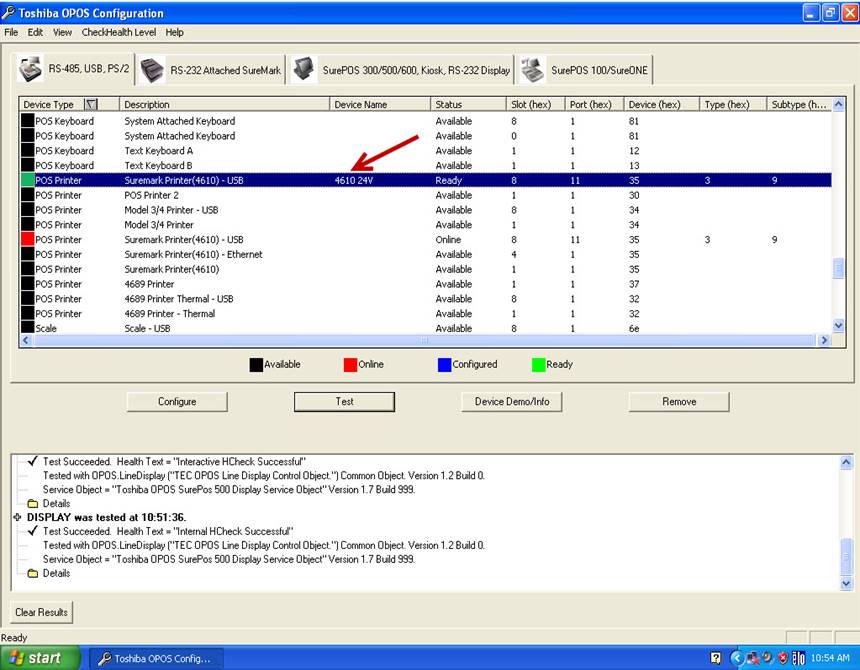
Localice – Select POS Printer 4610 24V
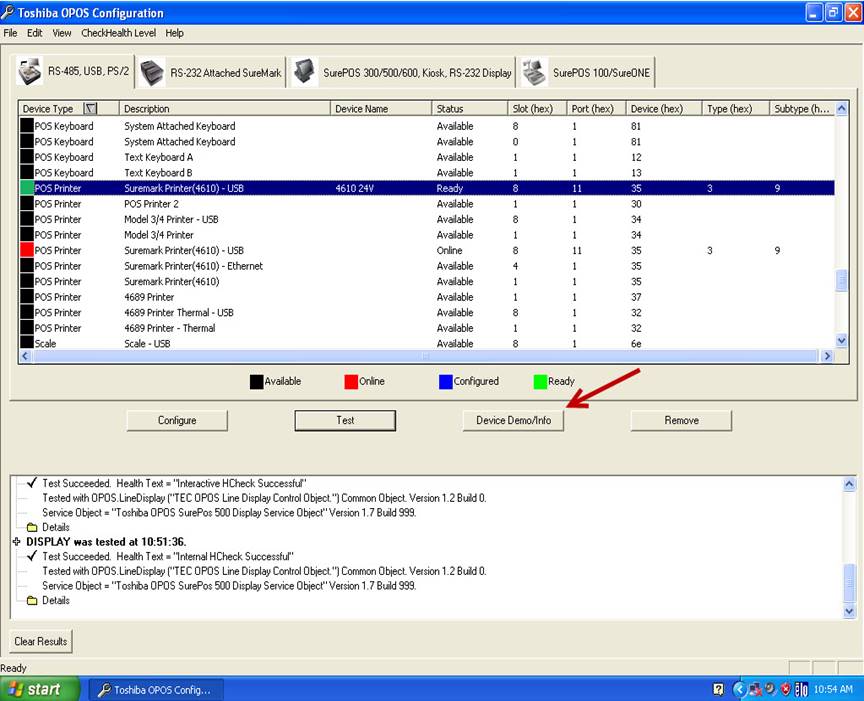
Seleccione – Select Device Demo/Info
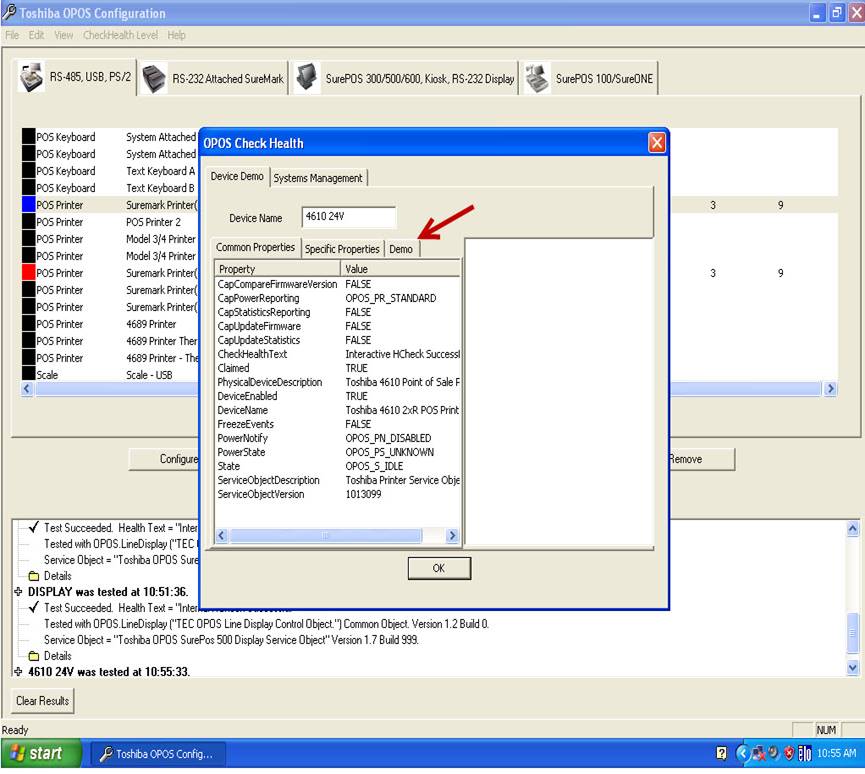
Seleccione – Select Demo
Seleccione – Select Print Test Receipt
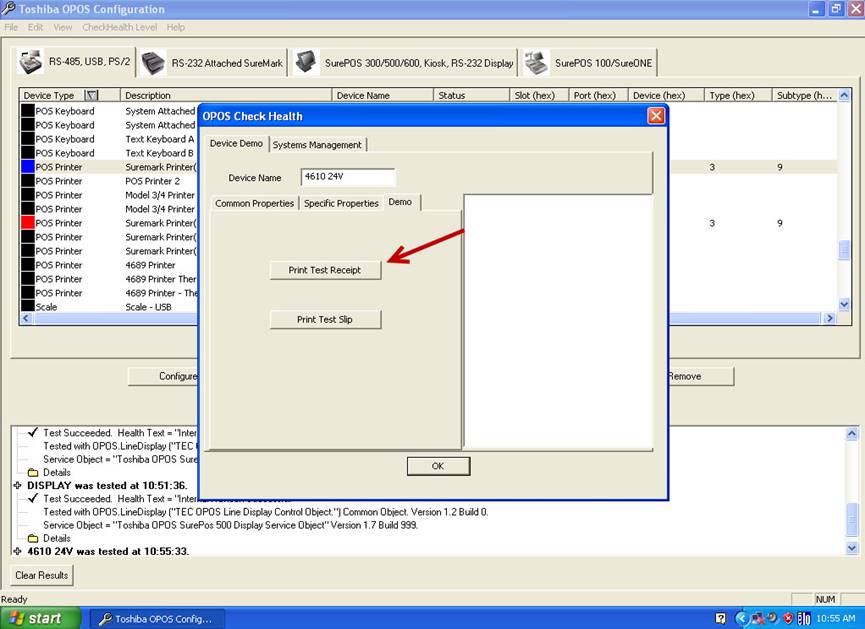
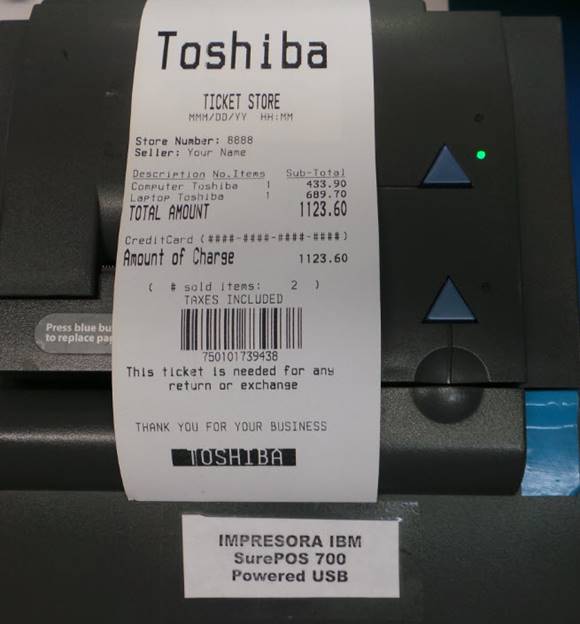
La impresora realizara las impresiones de demostración, realice varias veces la prueba.
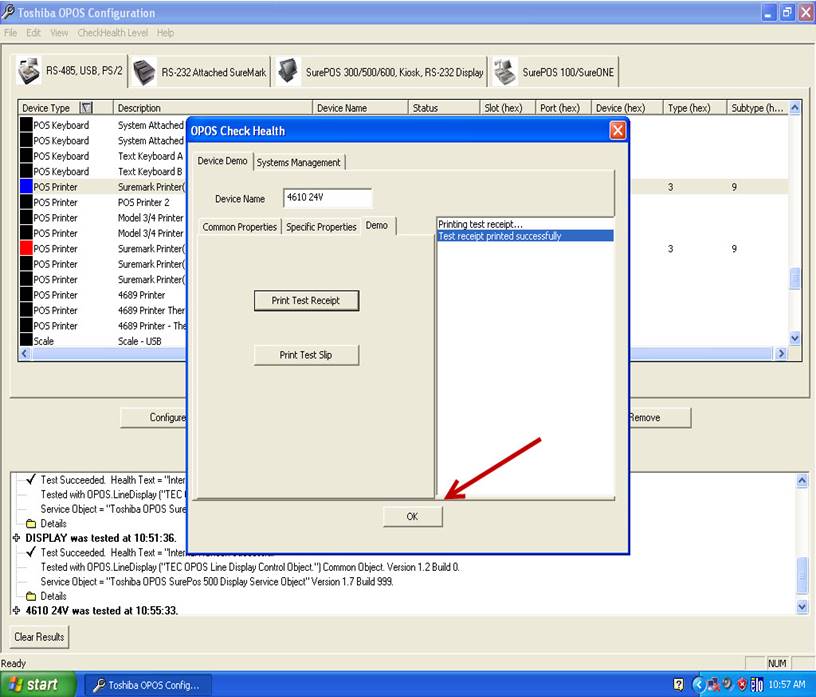
The printer will perform the demo prints, perform the test multiple times.
Seleccione – Select OK
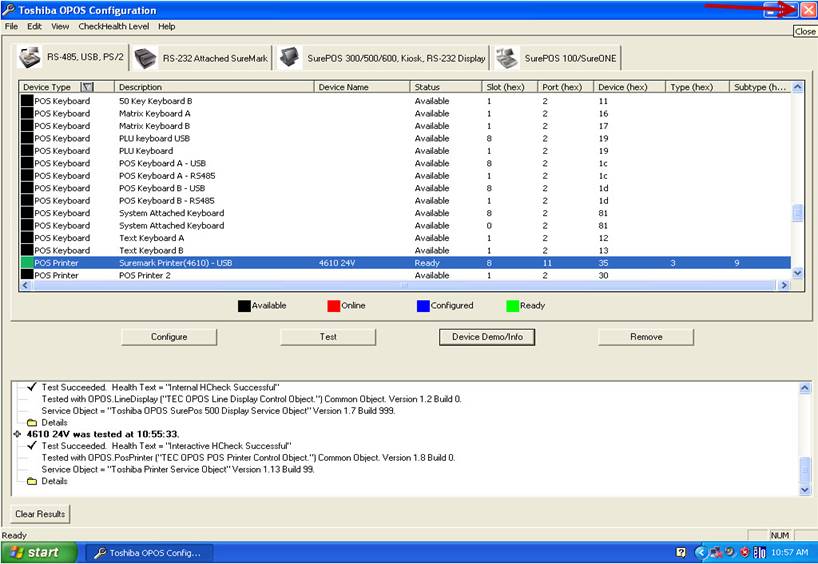
Cierre el programa.
Close the program.
Desinstale la impresora.
Uninstall the printer.
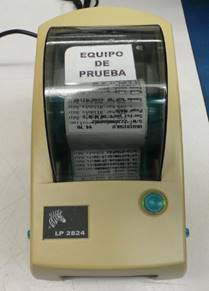
Localice e instale la impresora Zebra LP 2824.
Locate and install Zebra LP 2824 printer.
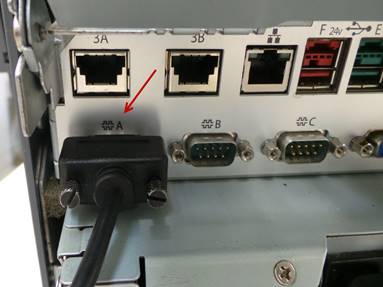
Instale el cable de comunicación al puerto A.
Install the communication cable to port A.
|
|
|
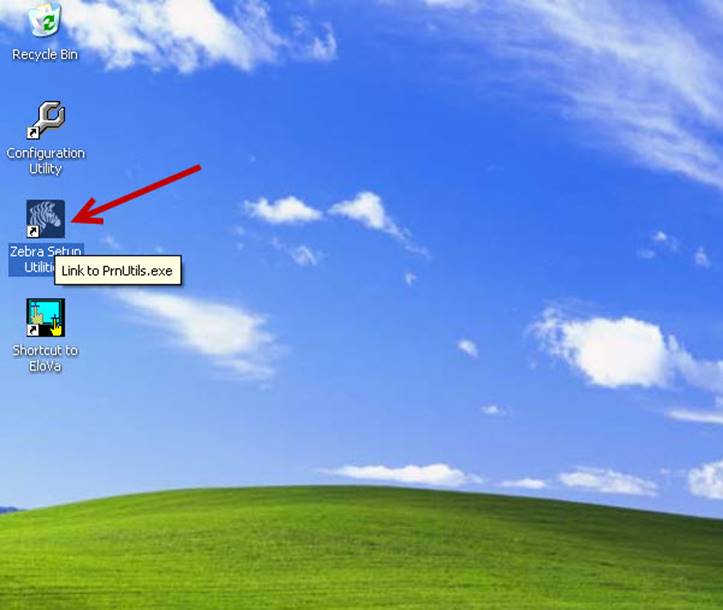
Ejecute el icono Zebra Setup Utilities.
Run Zebra Setup Utilities icon.
Seleccione – Select LP 2824 COM1:
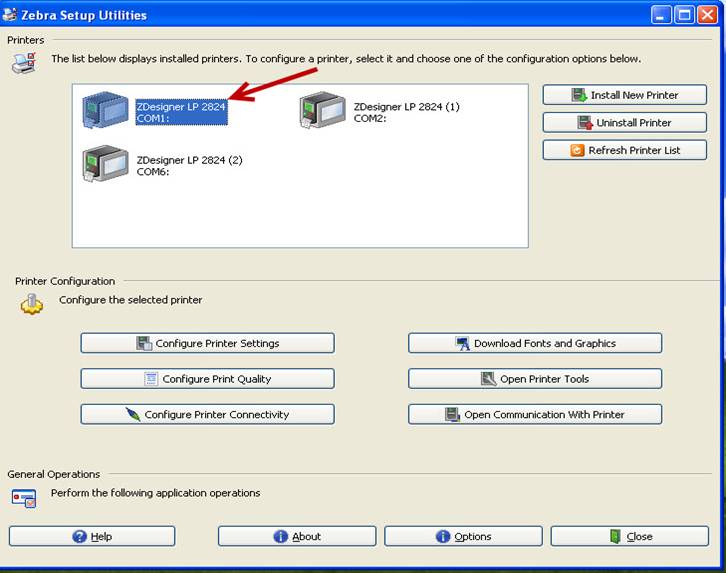
Selecione – Select Open Printer Tools
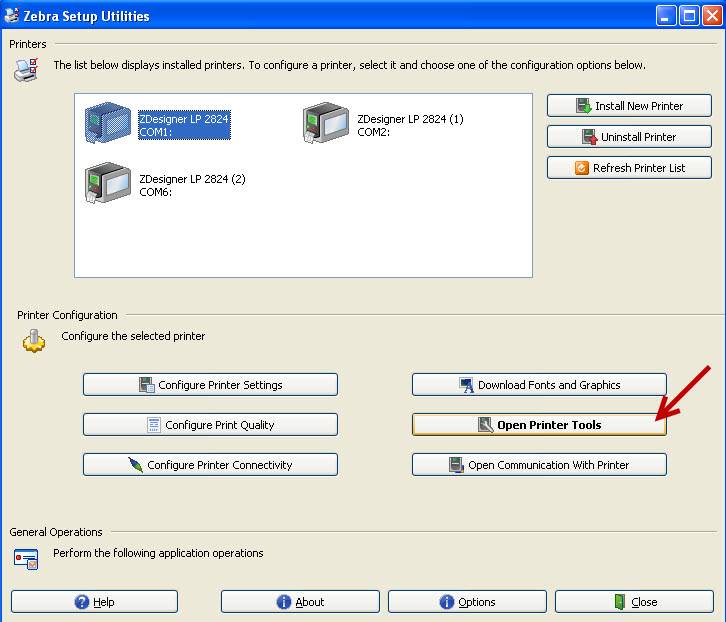
Seleccione – Select Feed one label
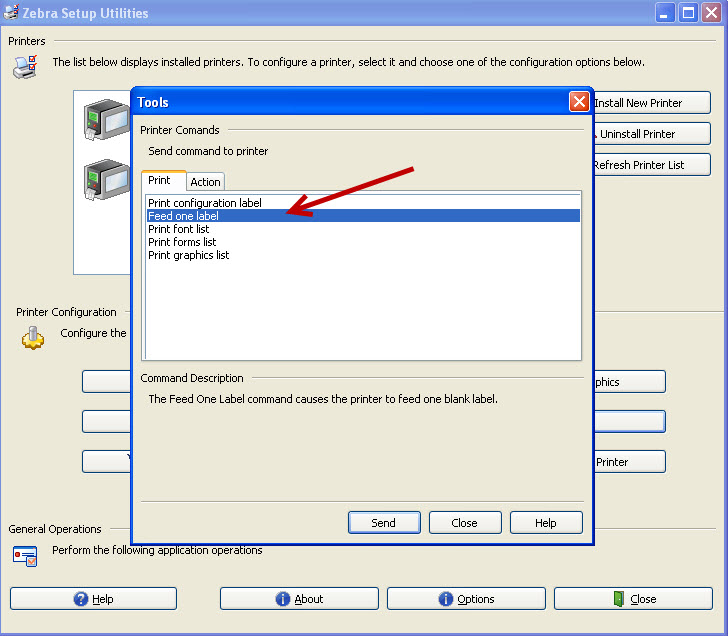
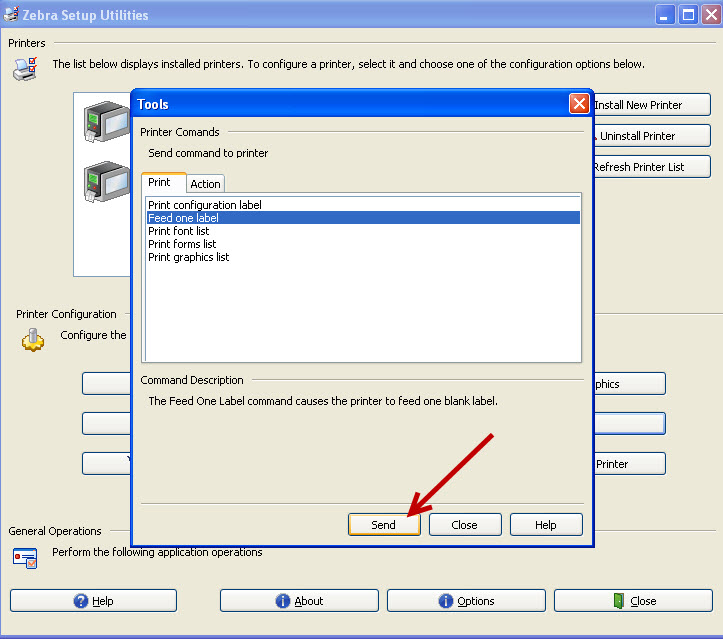
Seleccione – Select Send
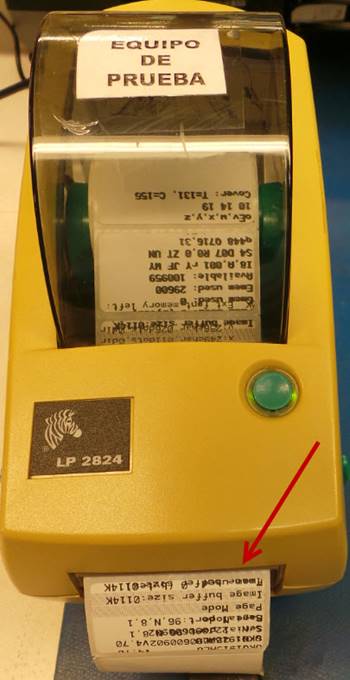
La impresora enviará una etiqueta.
The printer will send a label.
Seleccione – Select Close
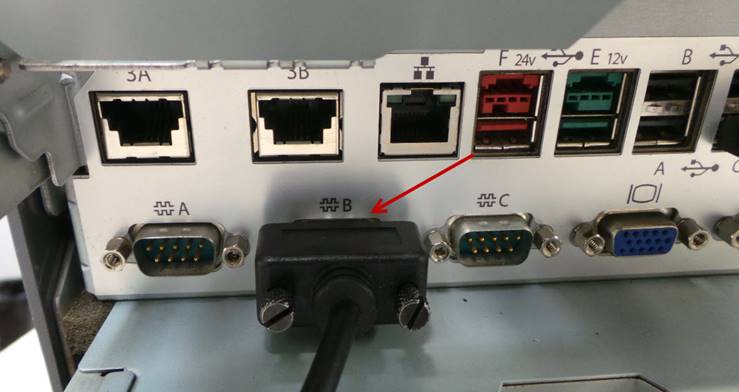
Cambie la impresora al puerto B.
Change the printer to port B.
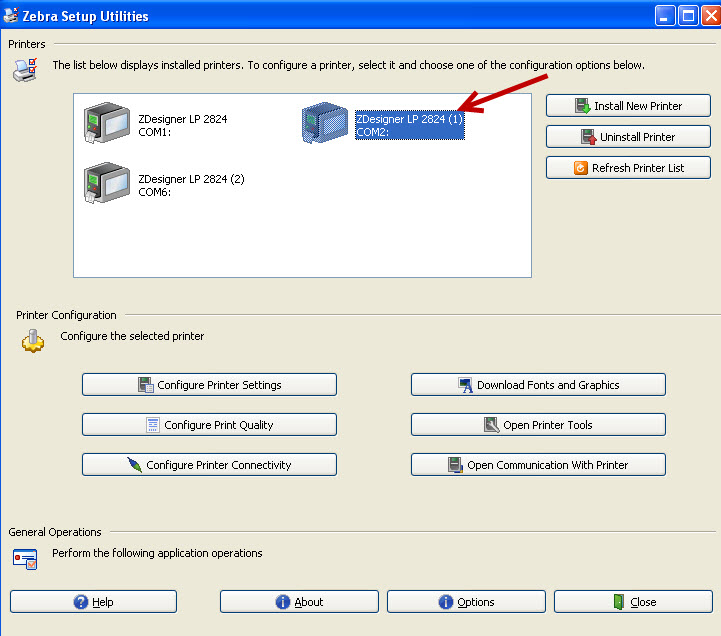
Seleccione – Select LP 2824 COM2:
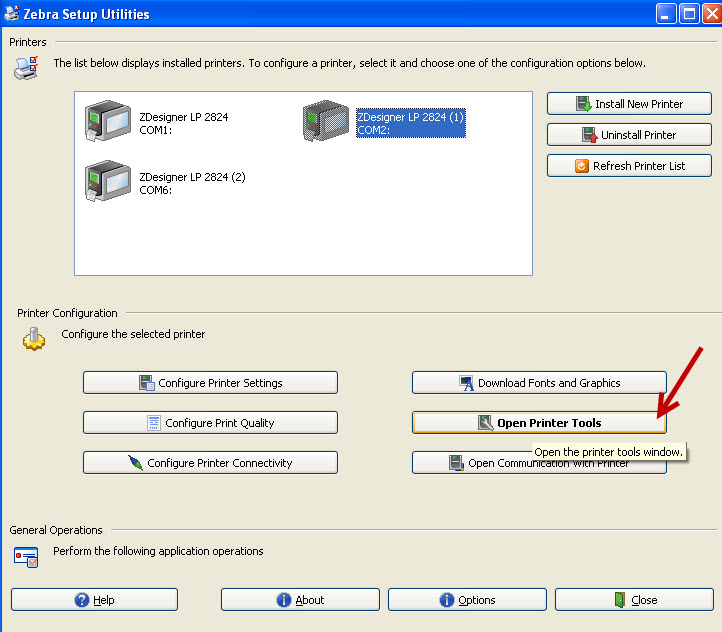
Seleccione – Select Open Printer Tools
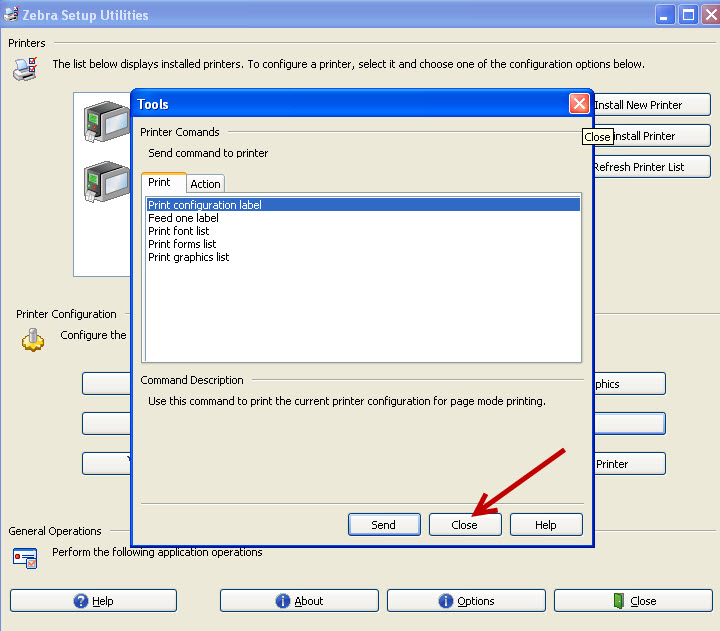
Seleccione – Select Feed one label
Seleccione – Select Send
La impresora enviará una etiqueta.
The printer will send a label.
Seleccione – Select Close
Cambie la impresora al puerto C.
Change the printer to port C.
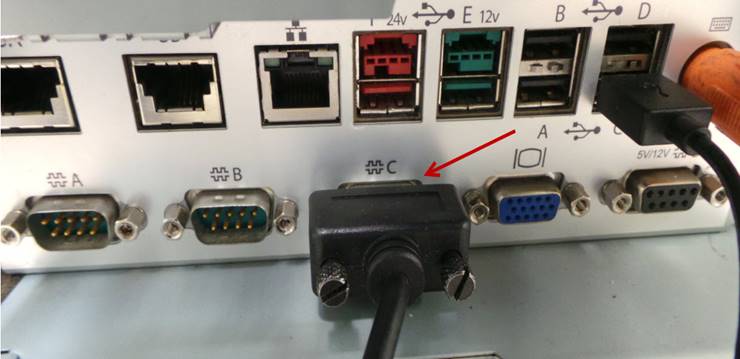
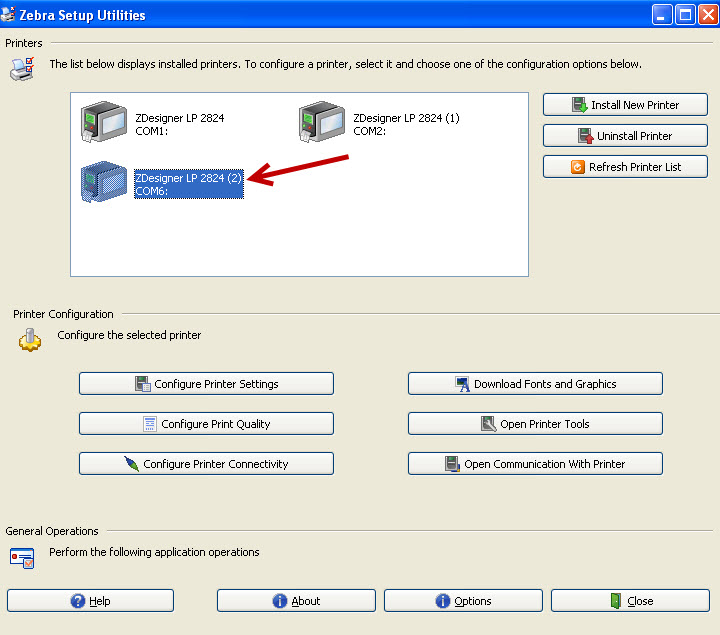
Seleccione – Select LP 2824 COM6:
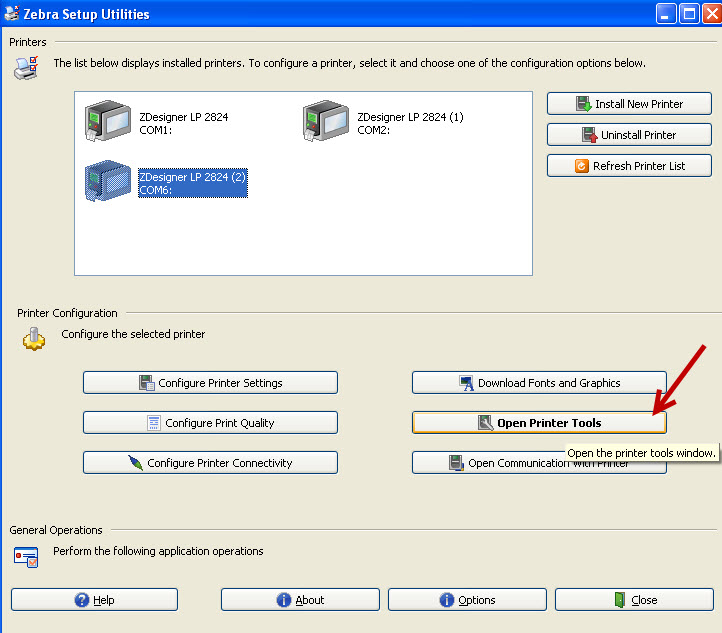
Seleccione – Select Open Printer Tools
Seleccione – Select Feed one label
Seleccione – Select Send
La impresora enviará una etiqueta.
The printer will send a label.
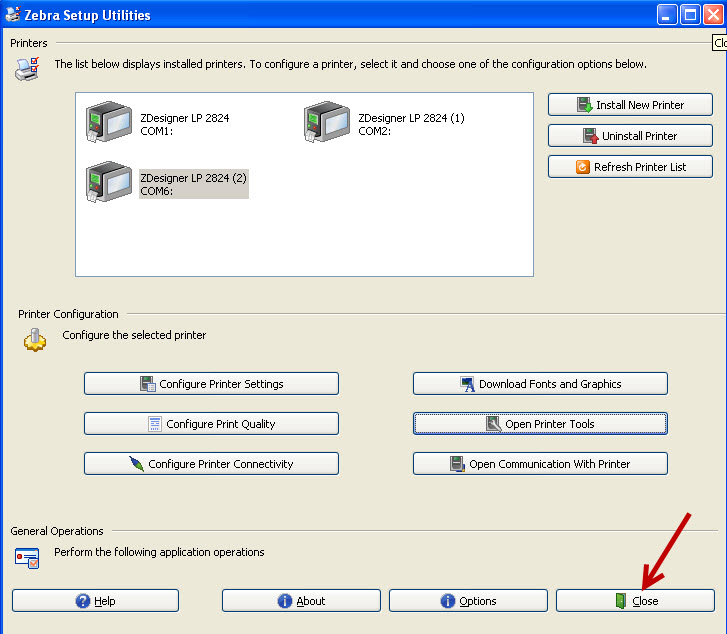
Seleccione – Select Close
Seleccione – Select Close
Instale el monitor IBM SurePOS 700.
Install the IBM SurePOS 700 monitor.
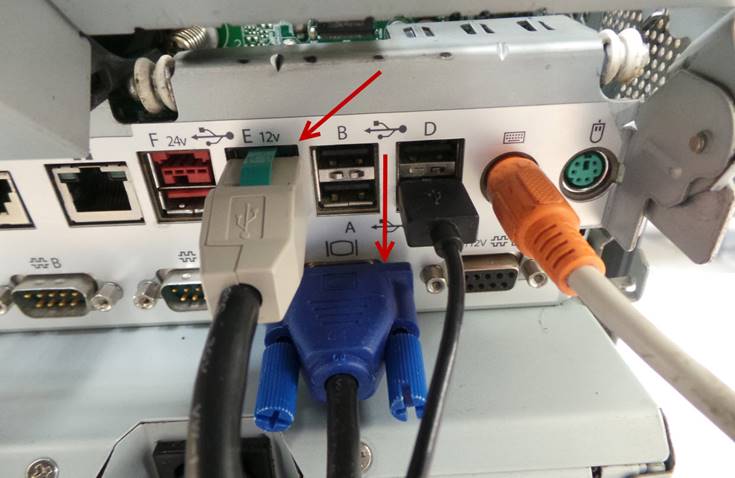
Conecte el cable VGA y el cable de alimentación de voltaje conéctelo al puerto E.
Connect the VGA cable and the voltage power cable connect it to port E.
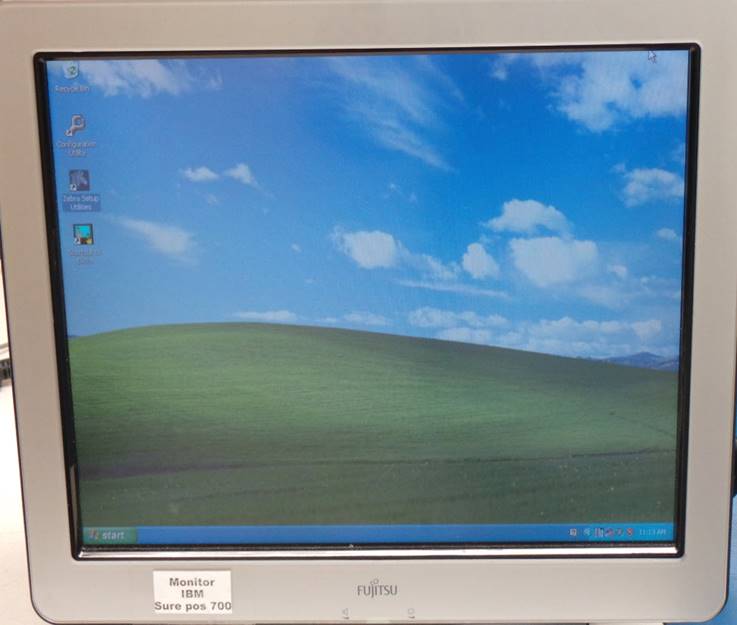
Revise que el video sea desplegado en el monitor.
Check that the video is displayed on the monitor.
Desinstale el monitor IBM SurePOS 700.
Uninstall the IBM SurePOS 700 monitor.
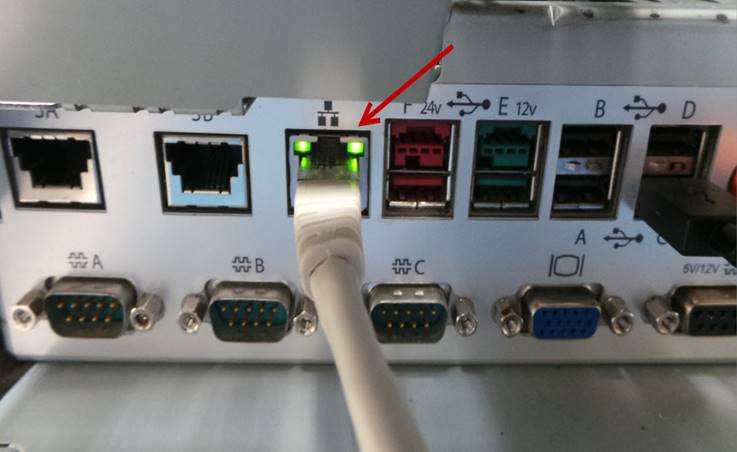
Conecte el cable de Ethernet.
Connect the ethernet cable.
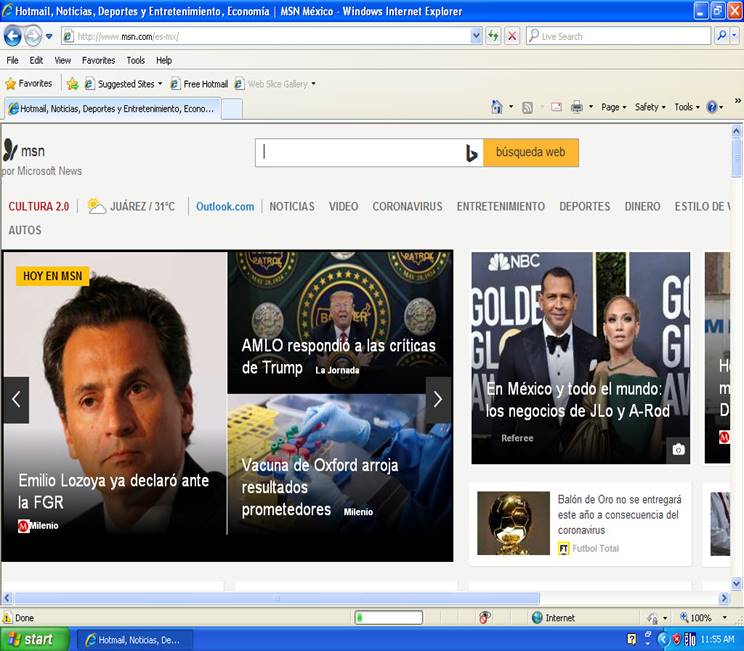
Ejecute el icono de Internet Explorer.
Run the Internet Explorer icon.
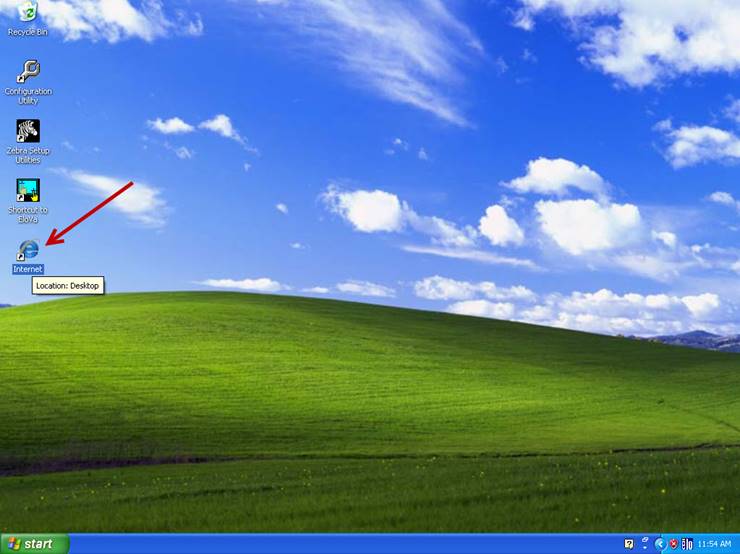
Se debe abrir la página de inicio de Internet Explorer.
The Internet Explorer start page should open.
Desconecte el cable de Ethernet.
Disconnect the Ethernet cable.
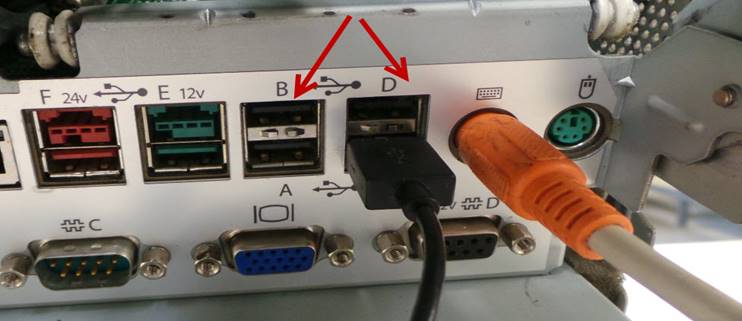
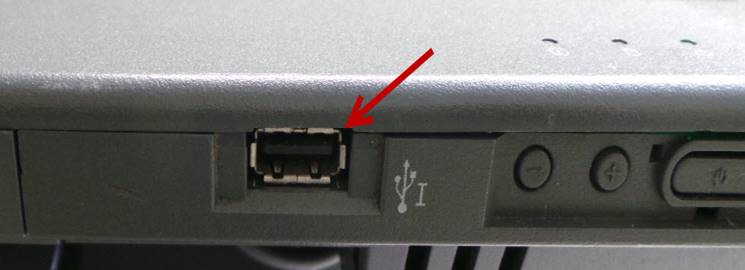
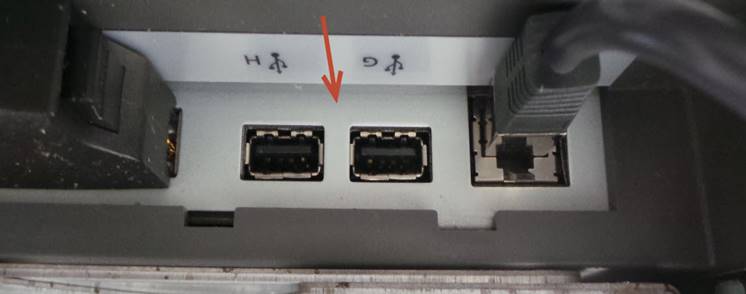
Utilizando el ratón revisar que todos los puertos USB funcionan correctamente.
Using the mouse check that all the USB ports work correctly.
|
|
|
|
|
|
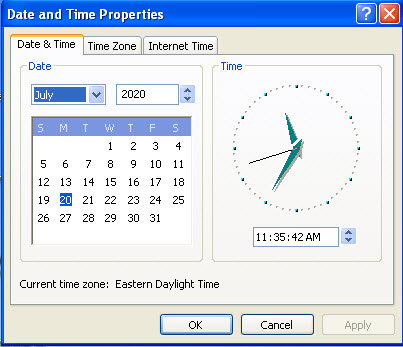
Configure la zona horaria a la costa este o Eastern Time.
Set the time zone to the east coast or Eastern Time.
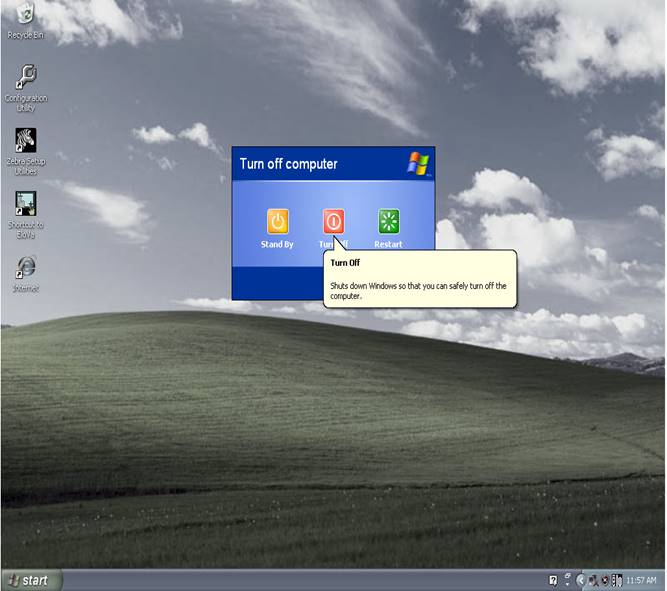
Apague la unidad.
Turn off the unit.
Desinstale el disco duro de pruebas.
Uninstall the test hard drive.
LIMPIEZA O FORMATEO DE DATOS DEL DISCO DURO / CLEANING OR FORMATTING HARD DRIVE DATA
Instale el disco duro de la unidad en el módulo UNITEK.
Install the unit's hard drive into the UNITEK module.
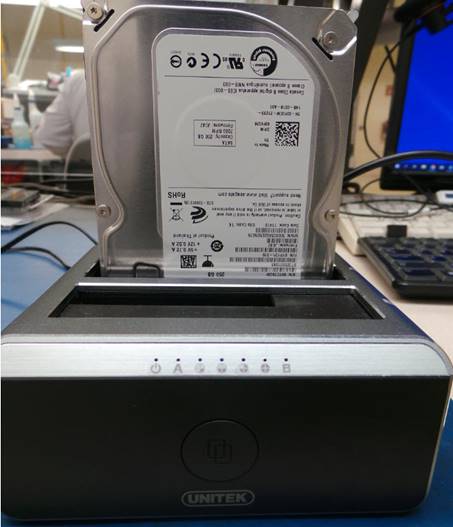
Encienda el módulo UNITEK y conecte el cable de USB al puerto de la computadora.
Turn on the UNITEK module and connect the USB cable to the computer port.
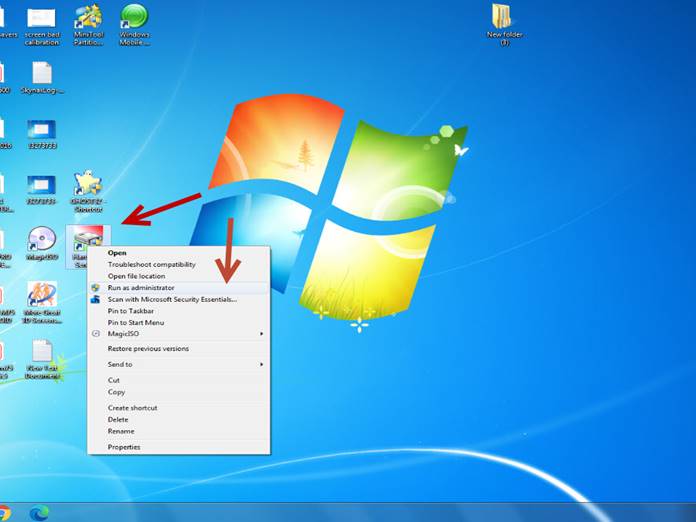
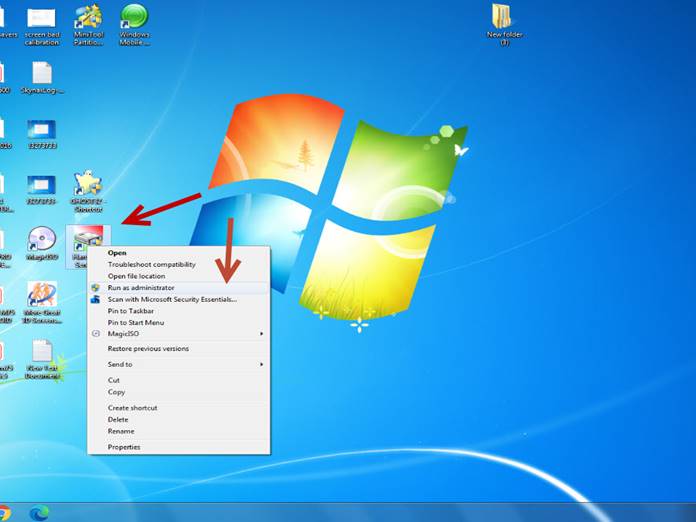
Ejecute el icono Hard Disk Sentinel como administrador.
Run the Hard Disk Sentinel icon as administrator.
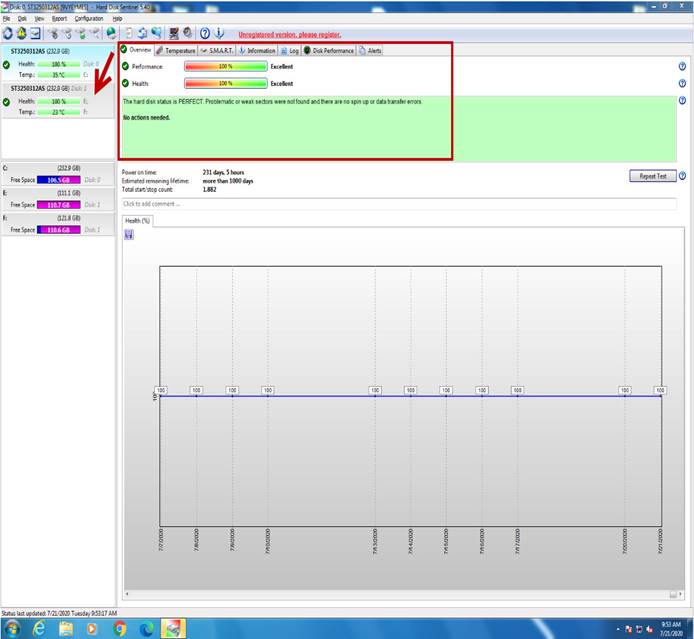
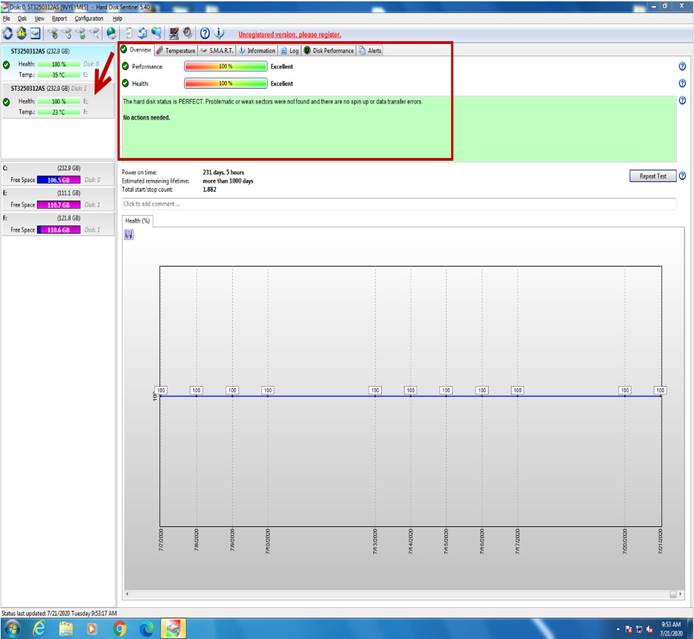
Seleccione el disco para verificar los valores de Performance y Health, los cuales deben estar al 100% en caso de que alguno de los 2 este por debajo del 100%, el disco duro deberá ser reemplazado.
Select the disk to verify the Performance and Health values, which should be 100% in case any of the 2 is below 100%, the hard disk must be replaced.
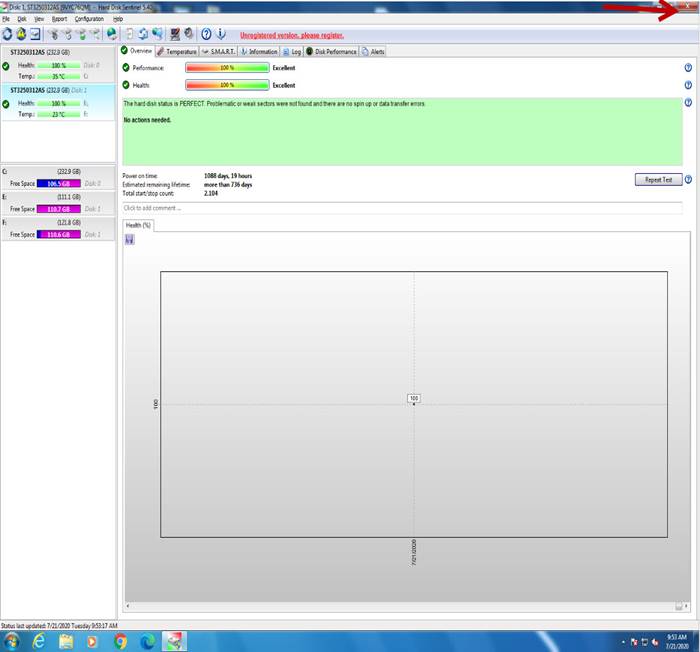
Cierre el programa.
Close the program.
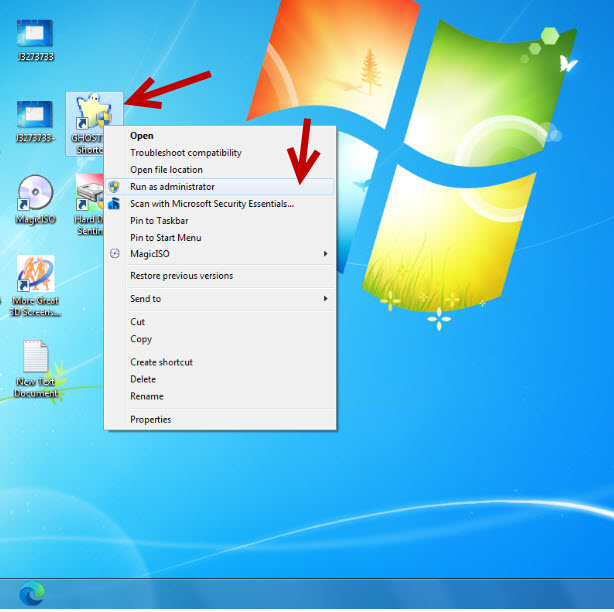
Ejecute el icono GHOST 32 Shortcut como administrador.
Run GHOST 32 Shortcut icon as administrator.
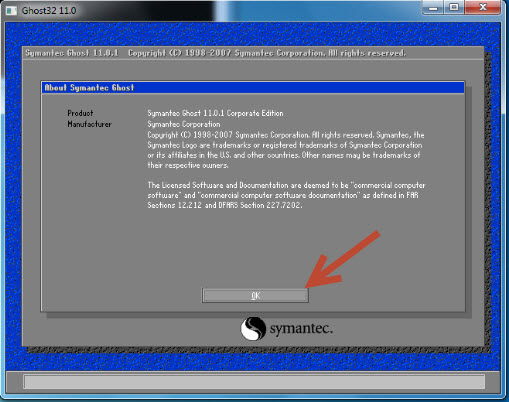
Seleccione – Select OK
Seleccione – Select Local à Disk à From Image
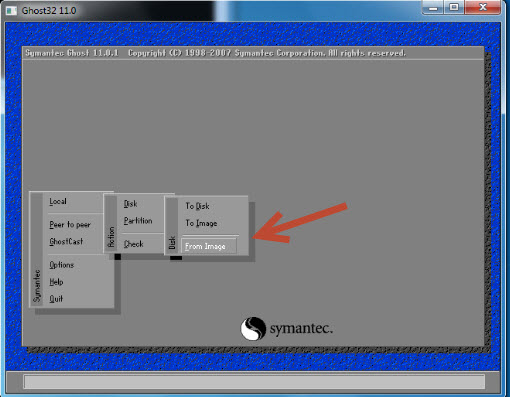
Seleccione cualquier imagen disponible, en este caso vamos a seleccionar 7403-Test bed.
Select any available image, in this case we are going to select 7403-Test bed.

Vuelva a seleccionar la imagen.
Select the image again.
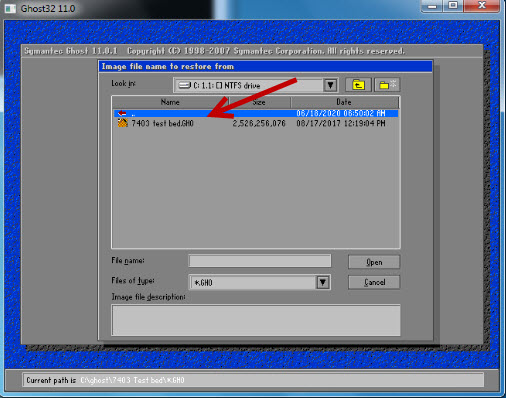
Seleccione – Select OK
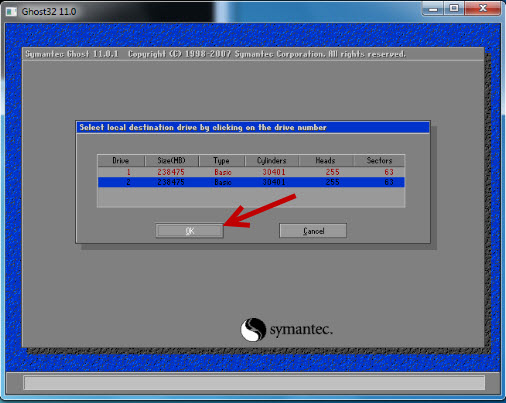
Seleccione – Select OK
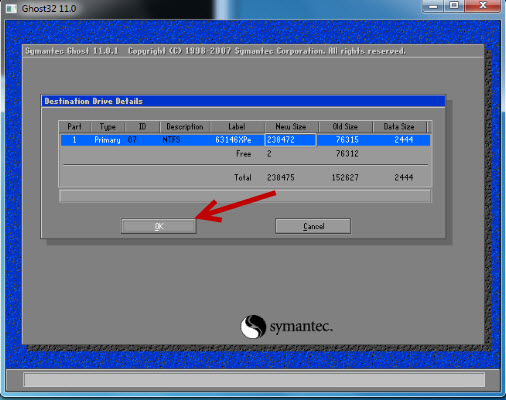
Seleccione – Select Yes
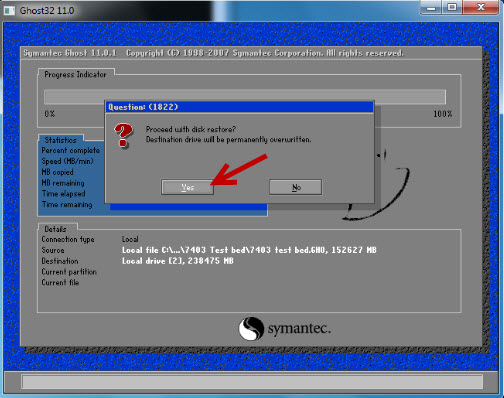
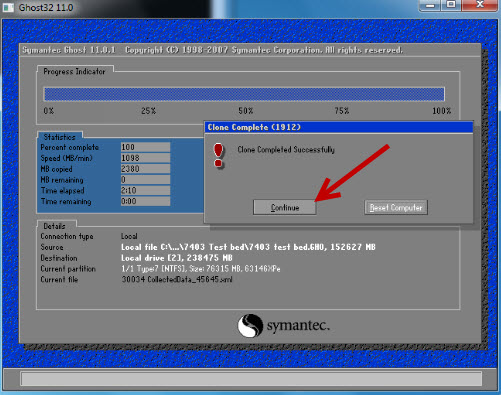
Seleccione – Select Continue
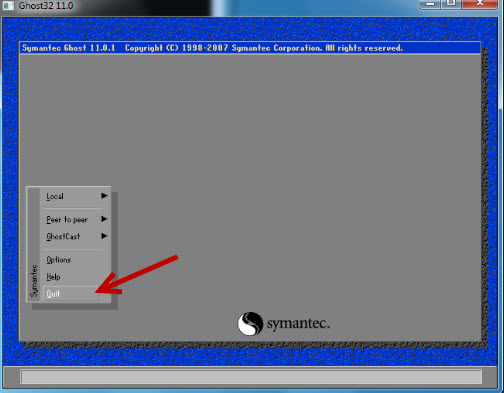
Seleccione – Select Quit
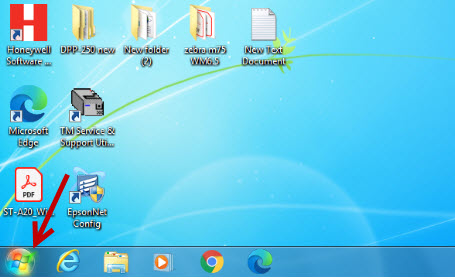
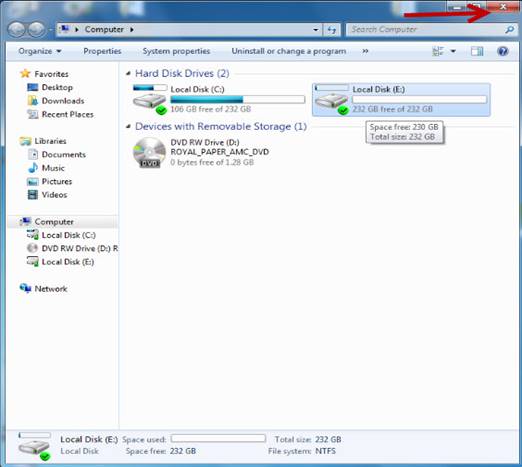
Seleccione Inicio.
Select Start.
Seleccione – Select Computer
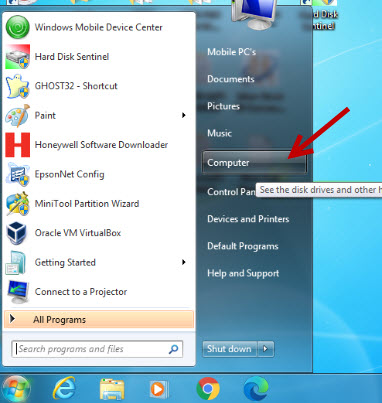
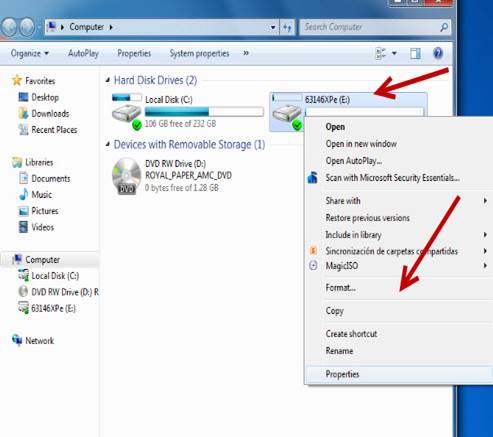
Seleccione el disco duro dando clic derecho y seleccione Format.
Select the hard drive by right-clicking and select Format.
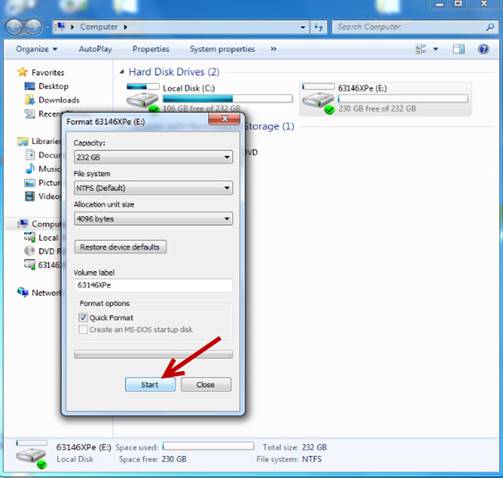
Seleccione – Select Start
Seleccione – Select OK
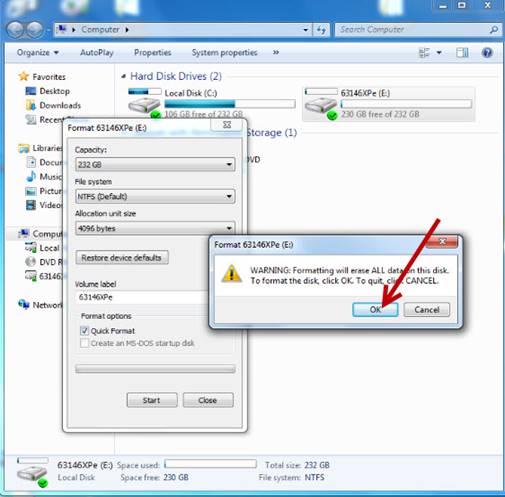
Seleccione – Select OK
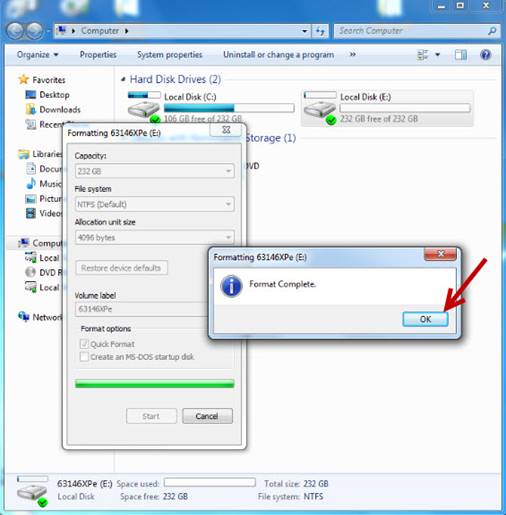
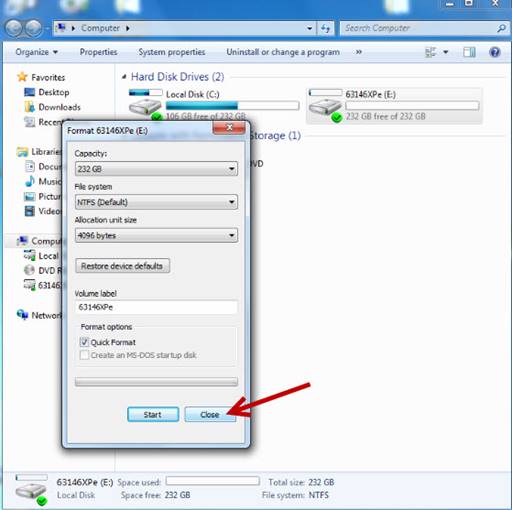
Seleccione – Select Close
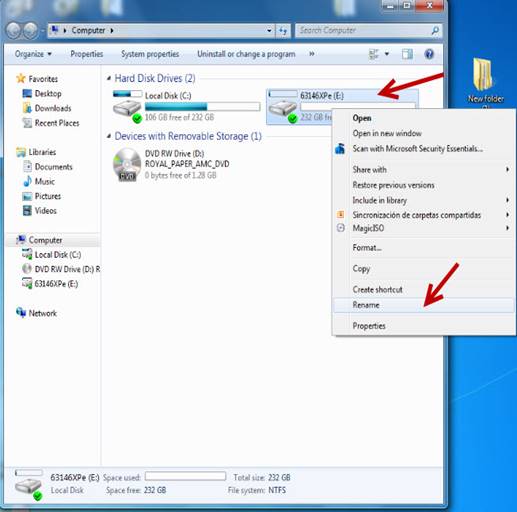
Seleccione nuevamente el disco dando clic derecho y seleccione Rename.
Select the disk again by right-clicking and select Rename.
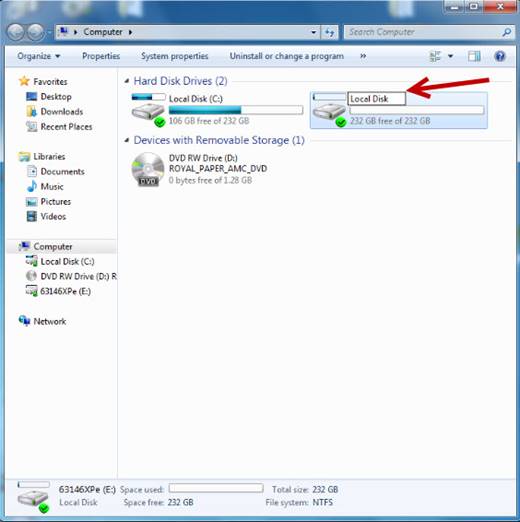
Renómbrelo como Local Disk.
Rename it as Local Disk.
Cierre la ventana de Computer.
Close the Computer window.
Ejecute nuevamente el icono Hard Disk Sentinel como administrador.
Run the Hard Disk Sentinel icon again as administrator.
Seleccione el disco para verificar los valores de Performance y Health, los cuales deben estar al 100% en caso de que alguno de los 2 este por debajo del 100%, el disco duro deberá ser reemplazado.
Select the disk to verify the Performance and Health values, which should be 100% in case any of the 2 is below 100%, the hard disk must be replaced.
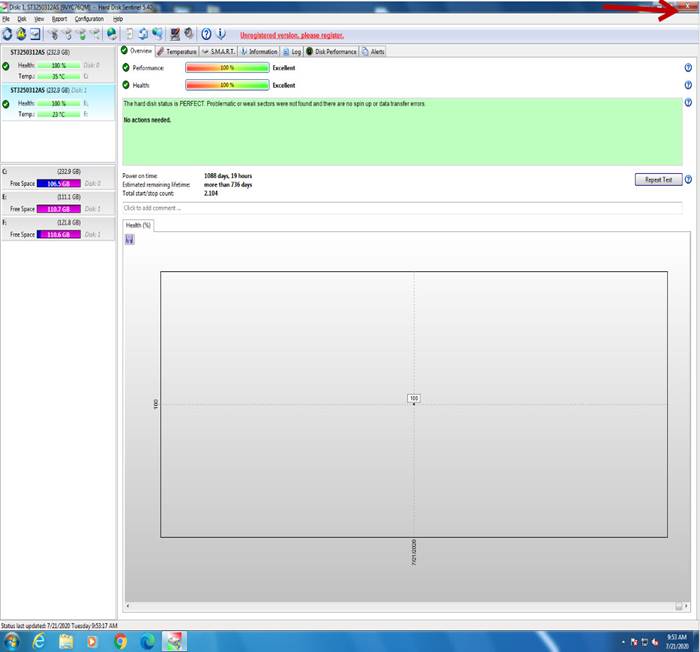
Cierre el programa.
Close the program.
Desconecte el disco duro de forma segura.
Disconnect the hard drive safely.
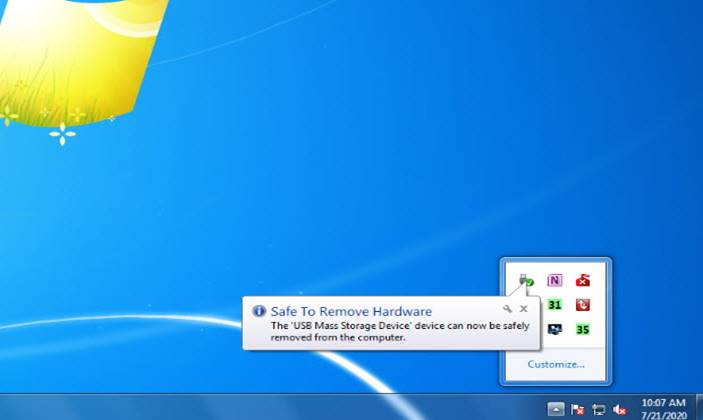
Retire el disco duro del módulo UNITEK, colóquelo nuevamente en su base e instálelo en la unidad.
Remove the hard drive from the UNITEK module, put it back in its base, and install it in the drive.
MANTENIMIENTO Y LIMPIEZA / MAINTENANCE AND CLEANING
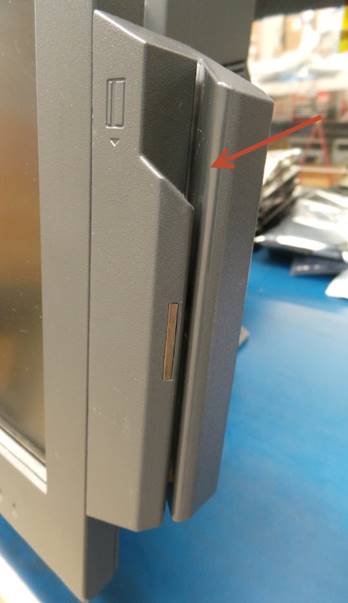
Limpie el lector de tarjeta de crédito.
Clean the credit card reader.
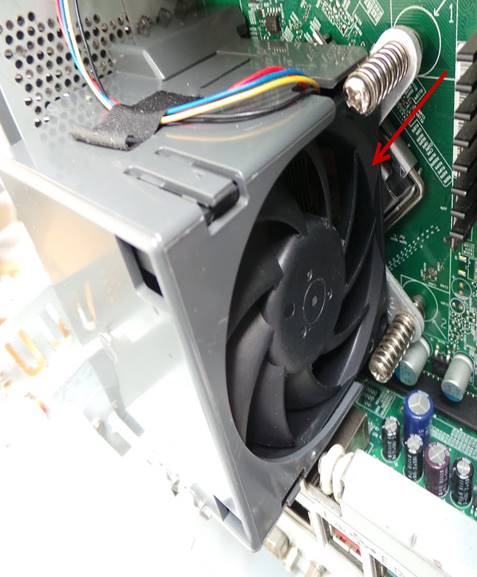
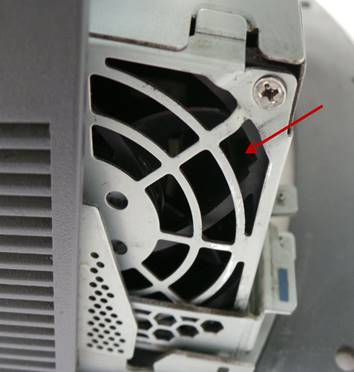
Limpie toda suciedad y polvo del abanico de la tarjeta madre.
Clean any dirt and dust from the fan of the motherboard.
Limpie toda suciedad y polvo del abanico de la fuente de poder.
Clean all dirt and dust from the fan on the power source.
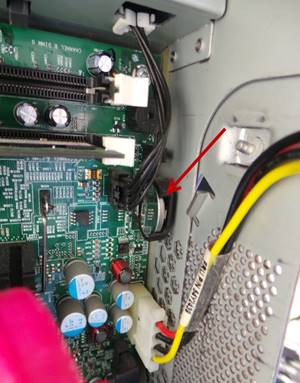
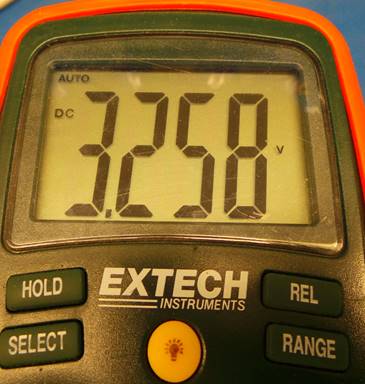
Revise el voltaje de la batería de litio, debe ser 3.0 o más.
Check the lithium battery voltage, it should be 3.0 or more.
En caso de que sea 2.9 deberá reemplazar la batería.
In case it is 2.9 you will have to replace the battery.
|
|
|
PRUEBA FINAL / FINAL TEST
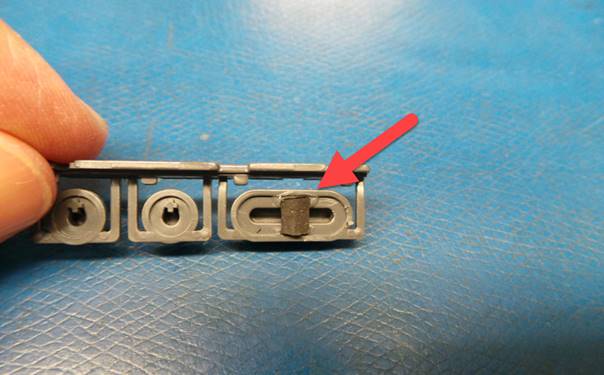
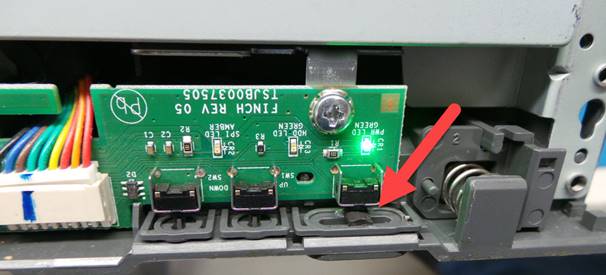
Coloque un pedazo viton en el botón de encendido para prevenir que el botón se mueva fuera de su lugar y ocasione que la unidad no encienda
Place a piece of viton on the power button to prevent the button from moving out of place and causing the unit to not turn on.
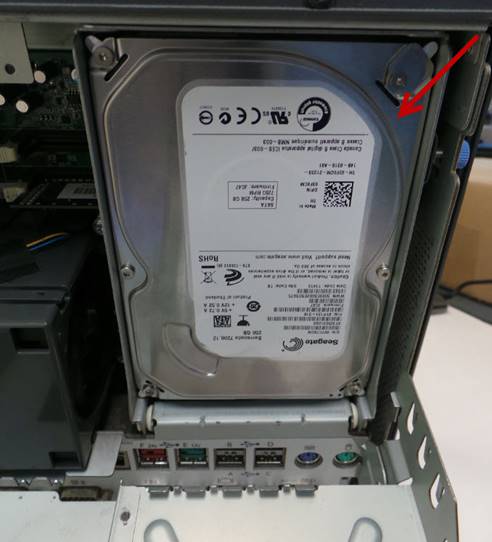
Instale el disco duro con el que se va a enviar la unidad.
Install the hard drive with which the unit will be shipped.
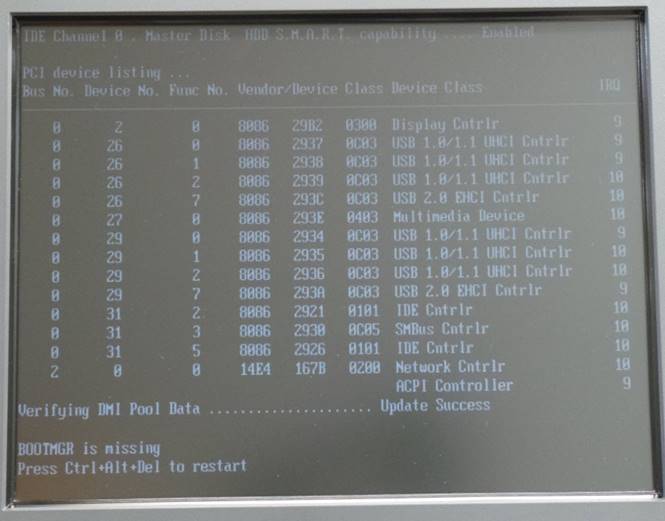
Encienda la unidad. La unidad debe encender y se estará reiniciando debido a que no tiene sistema operativo.
Turn on the unit. The unit should power on and will be rebooting because it has no operating system.
Solamente revise que el disco duro sea detectado correctamente.
Just check that the hard drive is detected correctly.
Apague la unidad.
Turn off the unit.
ASEGURAMIENTO DE CALIDAD / QUALITY ASSURANCE
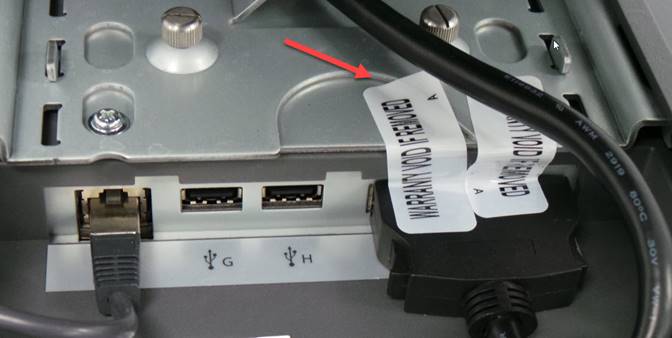
Coloque 2 etiquetas de garantia sobre el cable de video
Put 2 warranty labels on the video cable
Pida a una inspectora de Calidad que realice las pruebas a la unidad.
Ask a Quality Inspector to test the unit.
Todas las pruebas deben realizarse con el disco duro de prueba.
All tests must be done with the test hard drive.
Si la unidad pasa todas las pruebas, desinstale el disco duro de prueba e instale el disco duro con el que será enviada la unidad, coloque la cubierta trasera para que la unidad sea enviada al área de empaque.
If the unit passes all tests, uninstall the test hard drive and install the hard drive that the unit will be shipped with, put the back cover on so that the unit is sent to the packing area.
FALLAS COMUNES / COMMON FAILURES
|
FALLA |
POSIBLES CAUSAS |
SOLUCION |
|
No funciona pantalla táctil |
Pantalla táctil defectuosa |
Reemplace la pantalla táctil |
|
|
|
|
|
FAILURE |
POSSIBLE CAUSES |
SOLUTION |
|
Touch screen does not work |
Defective touch screen |
Replace touch screen |
|
|
WI#: 104 IBM 4852-E66 |
Originator: S Anaya 7/21/20 |
||||
|
Rev: 02 |
Rev Date: 4/1/21 |
Name: S Anaya |
Update: MSR reader |
Next Review: NA |
Approval: Tom St John |
|
|
Rev: 03 |
Rev Date: 6/10/22 |
Name: S Anaya |
Update: New pictures |
Next Review: NA |
Approval: Tom St John |
|
